The anatomy of an Account vs. a Contact
This is the single most common conceptual stumble new Suprata users hit. The system separates who pays the bill from who you talk to, and once you understand why, the rest of the CRM falls into place. Before that, things feel duplicative or backwards.
The short version
- An Account is the billable entity. A household. A business. The thing your invoice is to.
- A Contact is a person. Sally, Bob, the property manager, the spouse who handles the calls.
- An Account has one or more Contacts attached. Even a residential customer is technically an Account (the household) with at least one Contact (the person living there).
That's it. The rest of this article unpacks the implications.
Why two entities?
Because in the real world, the person paying and the person you interact with are often different — and even when they're the same, you frequently need to track several people associated with one billing relationship.
Examples that motivate the split:
- A commercial customer has an accounts-payable contact, a site contact, and the GM. One Account, three Contacts.
- A rental property is owned by an LLC, but the tenant is who calls when the AC breaks. One Account (the LLC), two Contacts (owner + tenant).
- A divorcing couple still owns the house jointly. One Account, two Contacts — and you may need to know which one to send invoices to right now.
- A property manager handles 30 different households, each with its own bill. 30 Accounts, all linked to the same property-manager Contact (plus the actual residents on each).
If everything were a single "customer" record, you'd be duplicating addresses, balances, and credit terms across every contact, then trying to keep them in sync. That's a maintenance nightmare. Splitting Account from Contact lets you track the relationship (Account) separately from the people (Contacts).
What lives where
It helps to memorize which fields live on which entity:
Account fields (billing-side):
- Billing name and billing address.
- Default invoice terms (Net 30, Due on Receipt, COD).
- Default tax category for this customer.
- Account balance, last payment date.
- Account type (Residential, Commercial, etc.).
- QuickBooks customer link, if you sync to QB.
- Tags that describe the relationship (e.g., "Pays on Time", "Subscription Customer").
Contact fields (people-side):
- First name, last name, title.
- Personal phone, email.
- Notes about the person ("prefers texts over calls", "speaks Spanish").
- Tags that describe the person (e.g., "Property Manager", "Decision Maker").
Notice: address, terms, and balance are on the Account, not the Contact. If Bob and Mary are both Contacts on the same Account and Mary moves to Florida, that doesn't change the Account's mailing address — it just means Mary, the person, has a new personal address.
The Accounts list
Sidebar: Accounts. This is the list of every billable entity you have a relationship with.
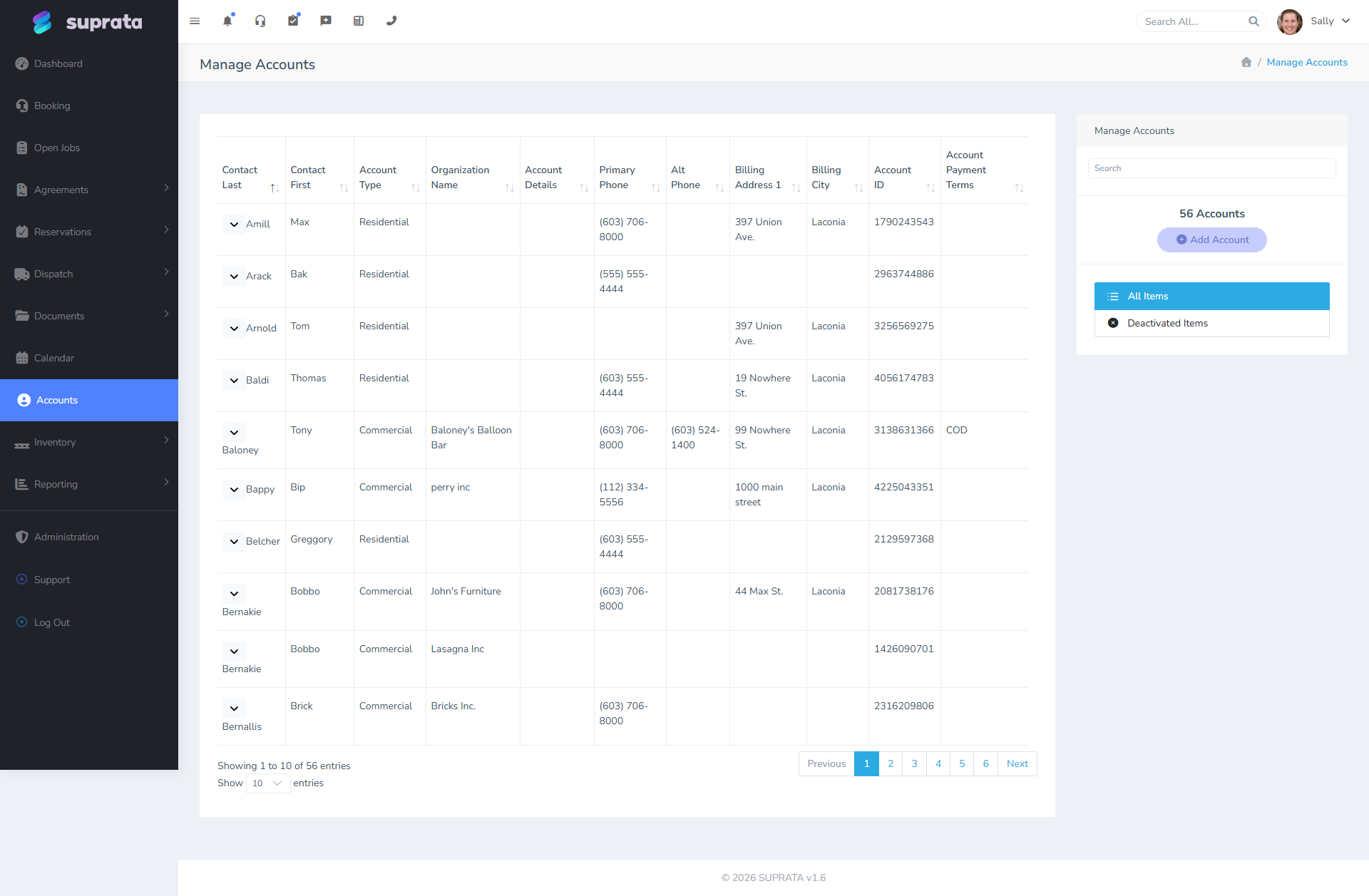
Notice the columns: Contact Last, Contact First, Account Type, Organization Name, Primary Phone, Billing Address, Account ID, Payment Terms. The Account is the row; the contact name shown is the primary contact attached to that Account (more on primary below).
Click an Account to open its dashboard — that's where you see jobs, invoices, payments, contracts, and the list of all contacts attached to it.
The Contacts list
A separate list shows every individual person across all your accounts. It's a flatter view that's useful when you remember a name but not what household or business they belong to.
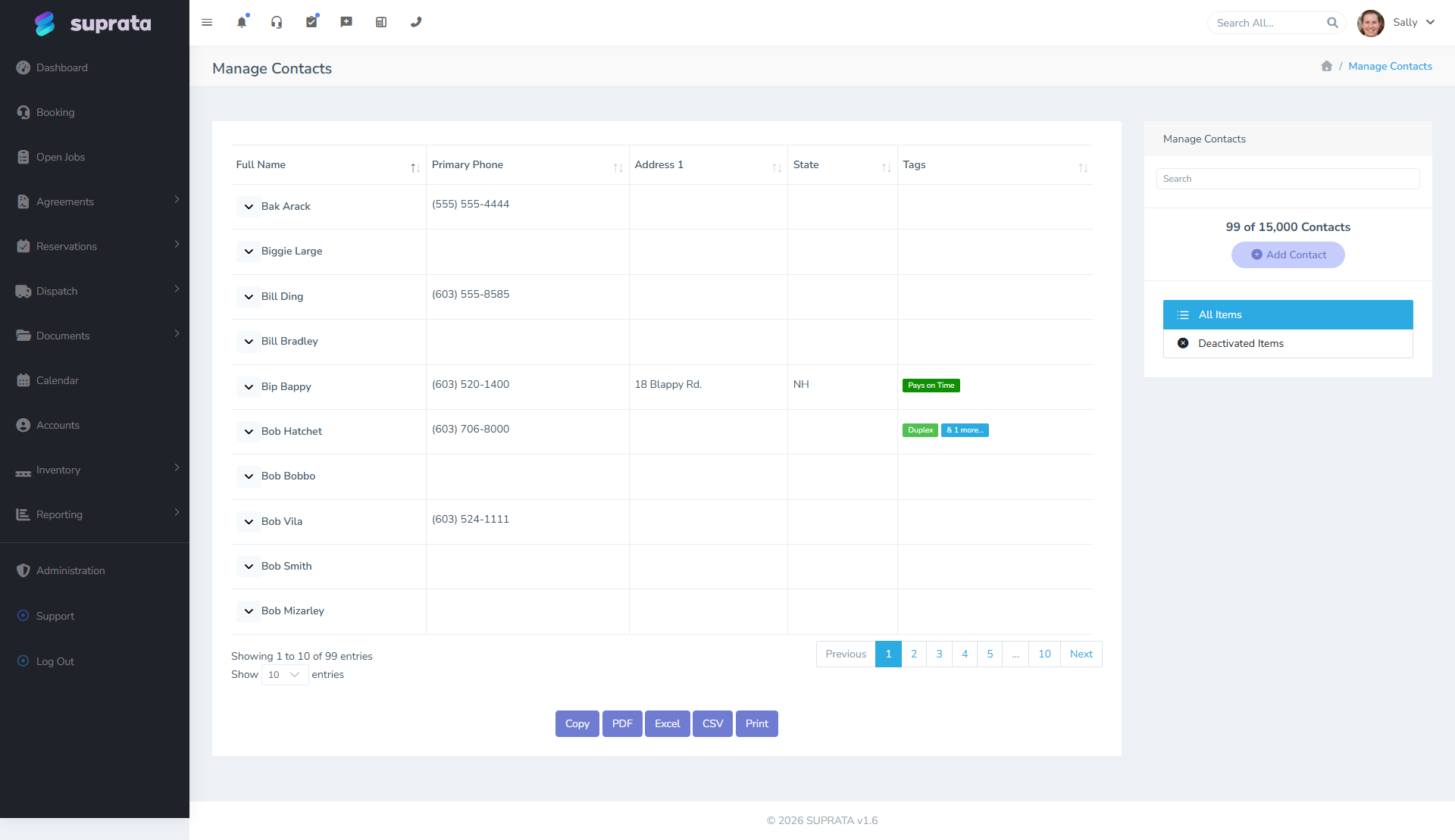
You'll typically reach this through the search bar (top right) or by filtering on a tag. Don't use the Contacts list as your primary navigation; the Account dashboard is almost always what you actually want.
Account types — Residential vs. Commercial vs. others
When you create an Account, you pick a type. The type controls how the Account displays its name and which fields are emphasized.
- Residential. The Account doesn't have an "Organization Name" — its display name is built from the primary Contact's name (e.g., "Smith, John"). Use this for households.
- Commercial. The Account has an "Organization Name" that's its display name (e.g., "ACME Plumbing"). Contacts are people inside that organization.
- Other types (e.g., Government, Nonprofit) — your account may have additional types your administrator created. They typically behave like Commercial but may be tagged differently for reporting.
Pick the right type at creation time. Switching later is annoying because the display logic changes — invoices that already went out keep their old labeling, but new ones look different.
The "primary" Contact
When an Account has multiple Contacts, one of them is primary. That's the person whose name and email show up on Account-level lists, who gets system-generated emails by default, and whose info is shown in the breadcrumb when you open the Account.
You set primary by reordering Contacts on the Account dashboard. Primary is whoever sits at position #1.
When you'd want to change primary:
- The original contact left the company.
- You realized you've been emailing the wrong person.
- A property changed hands.
Common mistakes
- Creating a brand-new Account every time the same customer comes back. Creates duplicate accounts, duplicate balances, fragmented job history. Always search first; if a customer exists, edit the existing Account.
- Storing the household name in the Contact's name field. It's tempting to type "John & Mary Smith" as the contact name. Don't — make John one Contact and Mary another, both attached to the same Account. Otherwise you can't text them separately or differentiate who called.
- Tagging the Account when you mean the Contact (or vice versa). "Pays on Time" is an Account trait; "Likes phone over email" is a Contact trait. Mixing them dilutes both tag systems.
- Setting billing address on the Contact. The billing address belongs to the Account. The Contact's address (if any) is the personal mailing address of that one person.
- Trying to "merge" two duplicates from the UI. There isn't a click-merge button. If you have two duplicate Accounts, the cleanup is manual — move jobs/invoices to the surviving Account, then deactivate the duplicate. (See the Cleaning up duplicate accounts article — forthcoming — for the safe procedure.)
- Treating commercial accounts as residential. Then your invoices show "Smith, John" instead of "ACME Plumbing", which confuses Accounts Payable on the customer's side.
A worked example
Let's set up "ACME Bakery" properly:
- Create one Account. Type: Commercial. Organization Name: "ACME Bakery". Billing address: 123 Main St. Default terms: Net 30.
- Add Contacts. First, the owner: "Sarah Bakerton, Owner, sarah@acmebakery.com, (555) 123-4567". Mark her primary. Then the AP person: "Tom Smith, Accounts Payable, ap@acmebakery.com". Then the site manager who'll meet your tech: "Jim Lopez, Site Manager".
- Tag the Account "Pays on Time" (or whatever account-level traits you track).
- Tag Tom "Receives Invoices" so you remember to send invoices to him, not Sarah.
Now when you generate an invoice, the system bills "ACME Bakery" at the right address with Net 30 terms, sends the email to Tom (because of his tag and your email rules), and your tech knows to call Jim when arriving on-site. One Account, three people, no duplication.
Related articles
- Your first week with Suprata
- Searching and filtering accounts and contacts (forthcoming)
- Cleaning up duplicate accounts (forthcoming)
- Tagging accounts and contacts well (forthcoming)