Reading the QuickBooks sync report
QuickBooks sync runs in the background. Most days you don't think about it — invoices push, payments push, customers push, and the books reconcile. The day you do think about it is the day something doesn't sync, and someone in accounting wants to know why.
The QuickBooks sync report is where that question gets answered. It's a per-record log of every sync attempt: what was pushed, when, whether it succeeded, and if not, why. Read it well and you can diagnose any sync issue in under a minute. Skip past it and you're guessing.
This article walks through the structure, the status meanings, and the common errors with concrete remediation.
When you'd use this
- Accounting says an invoice "didn't make it to QuickBooks." Sync report is the first place to look.
- Right after a first sync — you want to confirm the volume that actually moved over.
- You changed a tax mapping or class mapping and want to verify the change took effect on the next batch.
- Suprata's sync status widget shows errors and you need to drill in.
- You're about to run a month-end close and want to make sure no invoices are stuck pending.
If the integration isn't connected at all, see QuickBooks prerequisites and QuickBooks first sync walkthrough. The sync report assumes a working connection.
What the report shows
Each row is one sync attempt for one entity. The entity might be a customer (account), an item (pricelist row), an invoice, a payment, a credit, a refund, or a void. Each attempt records:
- Timestamp — when the attempt ran.
- Entity type — invoice / payment / customer / etc.
- Local identifier — the Suprata-side reference (invoice number, account name, item name).
- QB identifier — once synced, the QB-side ID. Empty if the record never pushed.
- Status — synced / skipped / pending / error.
- Error message — for failed pushes, the reason.
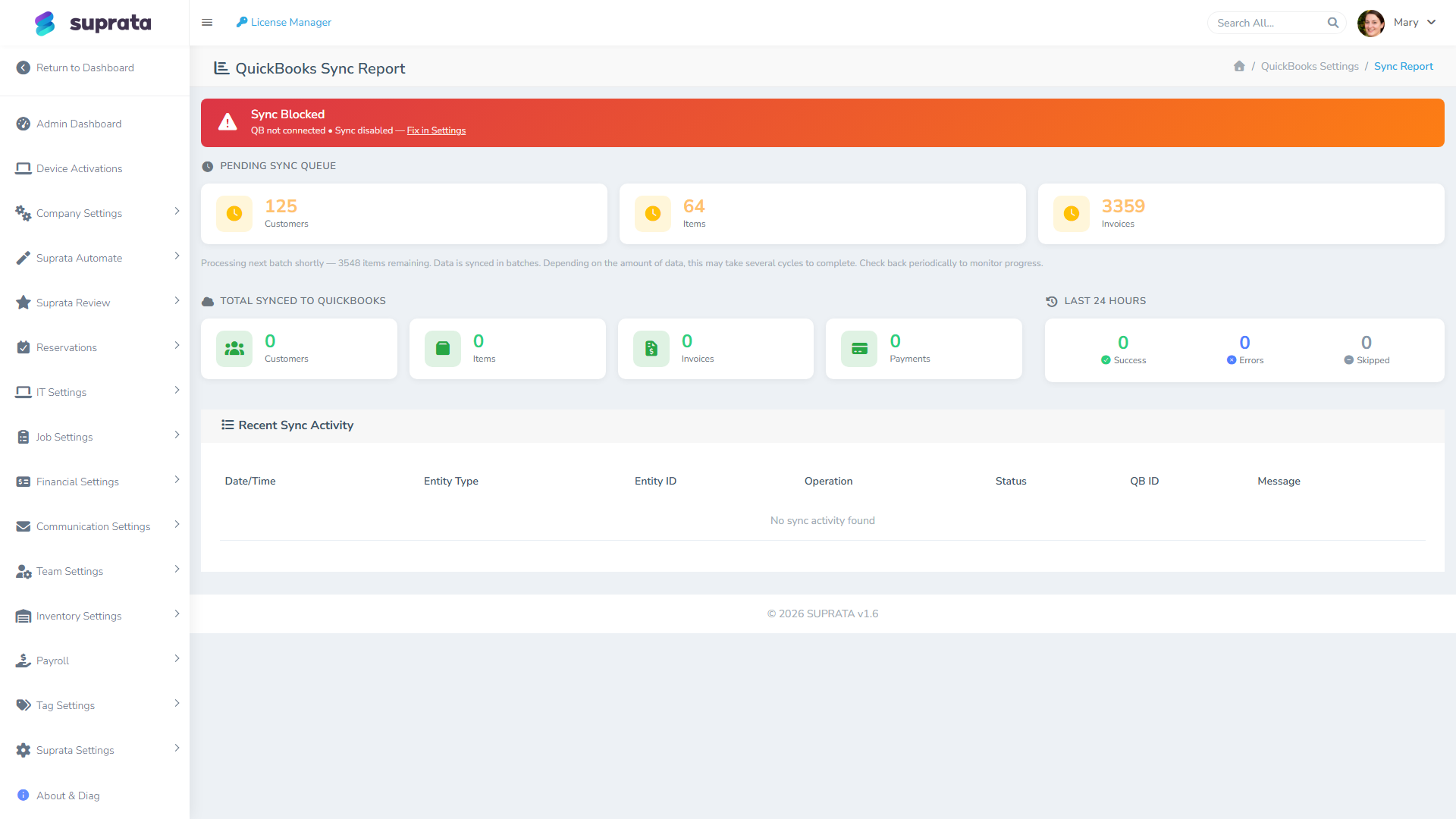
You can filter by date range, entity type, and status. For day-to-day monitoring, filter to "errors only, last 7 days" — that's the working list of what needs attention.
The four statuses, in plain English
Synced
The record made it to QuickBooks. The QB ID is recorded. You can click into QB and find it. This is the happy path.
If you're auditing sync coverage ("did all of yesterday's invoices sync?"), this is the row count you compare against your Suprata-side invoice count for the day.
Skipped
The record was intentionally not pushed. Skipped is not an error. Common reasons:
- The record falls before your historical cutoff date. Sync was set to start from a particular date; everything before is excluded by design.
- The record's status doesn't qualify for sync. A draft invoice, a voided pre-sync invoice, a customer marked as inactive — these are skipped to keep QB's books clean.
- The mapping required for the record is missing. E.g., an invoice references a tax category that has no QB tax-code mapping yet. Sync skips the invoice rather than push a partially-mapped one.
- A duplicate detection rule fired. A customer with the same name+address already exists in QB; sync skips creating a duplicate.
When you see Skipped rows, check the reason. If it's the cutoff or status — fine, expected. If it's a missing mapping — go fix the mapping; the next run will pick up these records.
Pending
The record is queued but hasn't been pushed yet. Sync runs on a recurring schedule (roughly every 15 minutes), and a busy queue can mean recent records sit pending for a few minutes before their turn.
Pending for under an hour: normal. Pending for over a few hours: a sign the sync isn't running, or the QB connection is in a bad state. Check the sync status widget — if it says the connection is healthy and sync is running, give it more time. If the connection is down (the QuickBooks login has expired, for instance), pending records won't move until you reconnect.
Error
Suprata tried to push the record, the push failed, and the row shows what went wrong. This is the row type that needs your attention.
In most cases the error message comes straight from QuickBooks, so the wording uses QuickBooks' terms instead of Suprata's. The next section translates the ones you'll see most often.
Common errors and what to do about them
"An item already exists with the name {name}"
You're trying to create a pricelist item in QB but QB already has an item by that name. Two paths:
- Use the existing QB item. In Suprata, set the item's QB mapping manually so future syncs reference the existing QB item rather than try to create a new one.
- Rename the Suprata item slightly so QB accepts it as a new entity. Less clean — long term, you want one item, not two.
Prevention: before connecting QB, audit your QB item list against your Suprata pricelist for name overlaps.
"Tax code {code} is not valid for this invoice"
The invoice references a tax category that maps to a QB tax code that doesn't exist or isn't valid in the QB jurisdiction. See QuickBooks tax code mapping for the fix — usually a missing or wrong row in the tax-code mapping table.
"Customer {name} is required"
The invoice references a Suprata account that hasn't synced to QB as a customer yet. Either the customer sync hasn't run, the customer is in error state, or the customer is below the historical cutoff. Open the customer's row in the sync report; fix whatever's blocking the customer sync, and the dependent invoices will retry.
"Invalid reference: {field}"
Something the invoice references — an item, a class, a payment method — doesn't have a valid QB-side mapping. The error message names the field. Fix the underlying mapping in QuickBooks Settings, then the invoice will retry on the next sync run.
"Authentication failed" / "Token expired"
The connection to QuickBooks has lapsed. QuickBooks requires you to renew the connection roughly every hundred days, and yours has aged out. Go to the QuickBooks Settings page and click Reconnect — you'll sign into QuickBooks again. Once you're back in, the pending records resume on their own.
"Stale / locked"
A prior sync run got interrupted and didn't fully wrap up. Suprata clears these on its own after about ten minutes and the next run picks up where it left off. If you see this status and it hasn't cleared in fifteen minutes or so, use the manual reset button on the sync settings page.
"Account {name} not found"
A line item references a chart-of-accounts account that doesn't exist in QB. Either the account was deleted in QB after Suprata mapped to it, or the account-mapping was set to an account that never existed. Recreate the account in QB or update the mapping.
A daily / weekly / monthly rhythm for using the report
You don't need to live in this screen. A light rhythm covers most needs:
- Daily (60 seconds). Filter to errors, last 24 hours. Zero rows: move on. Any rows: read each, fix or escalate.
- Weekly (10 minutes). Filter to skipped, last 7 days. Verify each is intentional. Anything skipped due to missing mappings — go set the mapping.
- Monthly (before close). Run a full reconciliation: invoice count in Suprata for the month vs. invoice count in QB for the same period. The numbers should match. If they don't, the sync report tells you which are missing and why.
Common mistakes
- Treating the report as alarming. Some skipped rows are fine. A few errors a week is normal. Reading the message matters more than reacting to the count.
- Not checking the report after major changes. You changed your chart of accounts, or tax setup, or a Suprata mapping. The next sync's errors are how you find out whether the change worked. Look right after, not next month.
- Assuming "no errors today" means "all data synced." Skipped rows aren't errors but they aren't synced either. Glance at skipped too.
- Manually editing records in QB after sync. That'll create drift between systems that the report can't catch. If you change something in QB that came from Suprata, change it in Suprata too — or document why you didn't.
- Letting pending pile up. A tide of pending rows means sync isn't running. Investigate, don't ignore.
- Reading only the latest row for a record. Sync attempts retry. The most recent row tells you the current state but earlier rows tell you the history of failures, which can hint at the underlying issue.
What "good" looks like
In a healthy account, on any given day:
- Most invoices, payments, and customers show Synced status within 30 minutes of creation.
- A handful of skipped rows for cutoff-related entities — fine.
- Zero error rows older than a few hours.
- Pending rows clear on each sync run.
Drift from that picture is the early signal that something needs attention.