Setting up your company profile
The company profile is one of the very first things to fill in on a new Suprata account, and one of the most consequential. Almost every customer-facing artifact the system generates — invoice PDFs, appointment confirmations, "from" addresses on outbound email, the time printed at the top of a work order — pulls its identifying data from this single screen. Get it wrong and you'll be re-issuing invoices for months.
It takes about ten minutes. Don't skip the timezone, the mailing-vs-physical-address split, or the print logo.
When you'd configure (or revisit) this
- First-time setup. The onboarding wizard hits the most critical fields, but the full Organization Info screen has more.
- You changed phone numbers, moved offices, or rebranded. Customer-facing PDFs and emails will keep showing the old info until you update here.
- You're noticing wrong times on appointments. Almost always a timezone mistake on this screen.
- You added a second business unit. The company profile is still the parent identity — see Business units (forthcoming) for when to use a sub-brand instead.
Where it lives
In the sidebar: Company Settings → Organization Info.
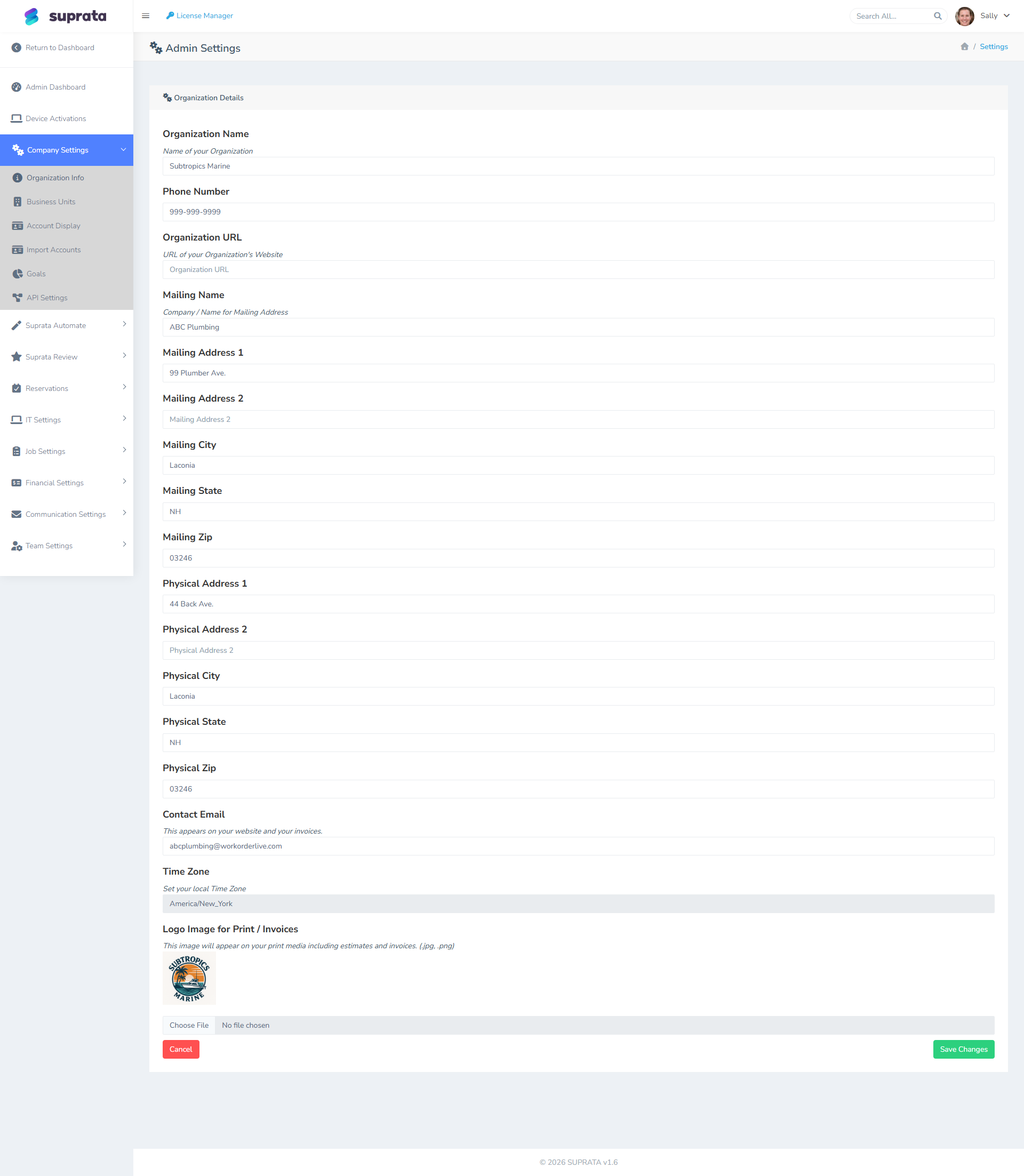
The screen is one long form. Save changes with the green button at the bottom — there's no auto-save.
What each section is for, and what to put in it
Organization Name
The name your business legally trades as. This is what shows in invoice headers and the "from" name on outbound email. If you're a DBA ("doing business as"), use the DBA — your customers know you by it, not by the LLC name on your tax documents.
If you operate multiple distinct brands under one Suprata account, leave this as your parent brand and use Business Units for the sub-brands. Otherwise every invoice goes out under whatever you put here.
Phone number
The number you want customers to call. This is what's printed on invoices, used as the default callback number on SMS-via-Twilio replies, and shown on the customer portal. If you have a separate "office" line and a "service" line, use the one customers should call first — your dispatch number, not your accountant's direct extension.
Organization URL
Your public website. Optional, but if set it appears as a clickable link on invoice PDFs and the customer portal. Use the canonical form (https://yourcompany.com, not www.yourcompany.com/index.html).
Mailing Name vs. Mailing Address vs. Physical Address
Three things, and the distinction matters more than people expect:
- Mailing Name — the name that appears on the address block. Often this is the same as Organization Name, but if you receive mail under a different name (a holding company, a billing entity, a P.O. Box rental), put that here.
- Mailing Address — where checks and physical correspondence should go. Often a P.O. Box.
- Physical Address — where you actually do business. Used for some regulatory contexts (e.g., tax-jurisdiction lookups) and shown on the customer portal as your "visit us" location.
If they're identical, fill them in identically. Don't leave physical address blank even if it equals mailing — some downstream features (geocoding, certain tax-table lookups) silently degrade if it's missing.
Contact Email
The email address printed on invoices and used as the "reply-to" address for outbound system mail. This is the address customers will use when they hit "reply" on an invoice notification. Make sure someone monitors it.
If you've configured outbound SMTP elsewhere (in Communication Settings), that's what sends the mail; this is what customers see and reply to.
Time Zone
The single most important field on this page. Every timestamp the system records — when a job was created, when an appointment starts, when an invoice was paid, when a tech clocked in — is stored in this timezone. Reports group by this timezone. Email confirmations show times in this timezone.
Pick the actual operational timezone of your business. Most US service businesses want one of America/New_York, America/Chicago, America/Denver, America/Los_Angeles, America/Phoenix (Arizona, no DST), or Pacific/Honolulu.
Do not change this after you have live data unless you have to. The historical data isn't retroactively re-timezoned. A 2 p.m. appointment recorded in Eastern still says "2 p.m." after a switch to Central, but it's now describing a 1 p.m. wall-clock event. Get this right on day one.
Logo for Print / Invoices
Upload a logo (.png or .jpg) for your printed invoices and quotes. Two practical tips:
- Use a transparent PNG if you have one. The invoice templates put the logo on a white background, but a transparent logo handles email-template rendering better in clients that use dark backgrounds.
- Keep it modest. Around 400×200 pixels is plenty. Huge logos get scaled down anyway and just bloat your PDF emails.
- It's separate from the on-screen logo. The Suprata-branded logo at the top of the staff app isn't replaced by this — that's the application chrome. This logo only appears on documents customers receive.
Common mistakes
- Leaving Time Zone on
UTCor the system default. Then every time on every report is wrong by 4–8 hours, and nobody figures out why for two weeks. - Confusing Organization Name with Mailing Name. Organization Name is the legal/trade name; Mailing Name is what goes on the envelope. They're often the same — but if a customer pays a check made out to "Mailing Name" and your bank rejects it, you have the wrong field filled in.
- Forgetting to set the Physical Address. Some integrations (geocoding, certain regional tax lookups) depend on it. A blank Physical Address can cause silent failures elsewhere.
- Treating the print logo as a brand-update tool. Updating the logo here changes future invoice PDFs only. Existing PDFs are already generated and stored — they keep the old logo. If you need a re-brand on historical invoices, that's a manual re-issue.
- Putting a personal email in Contact Email. Customers will reply to invoices and that mail goes to one person's inbox. Use a shared mailbox or distribution list (
billing@,support@,office@).
When you're done here
The next stops in the recommended setup path are:
- Inviting your team (creating staff users with the right roles)
- The anatomy of an account vs. a contact (clearing up the customer-naming model before you import or create any)
- Picking the right tax category strategy (do this before the price list, not after)
Related articles
- Your first week with Suprata
- Inviting your team (forthcoming)
- Business units — when you need them and when you don't (forthcoming)