The Automation Builder in 90 Seconds
The automation engine is a trigger-and-action workflow tool: when something happens in the system, do something else automatically. It's the difference between sending appointment reminders by hand every morning and never thinking about appointment reminders again.
That sounds like magic, and it can be. It can also backfire — a poorly-built automation that fires the wrong message to the wrong people is one of the fastest ways to lose customer trust. So this article is about both: what the engine can do, and how to get value out of it without making things worse.
When you'd use this
- A task you're doing the same way every day or every week (sending reminders, following up after jobs, nudging past-due invoices).
- A handoff between teams that's currently a "ping someone in chat" — automate the handoff and the message becomes consistent.
- A customer-facing touchpoint you'd like to be more reliable than human memory.
- A status change that should always be followed by some action (when a job goes to "complete," send a follow-up; when an invoice goes 14 days past due, queue a nudge).
When you would not use it:
- The first month you're using Suprata. Wait until you've done things manually for a few weeks. You'll find out which steps are actually repeatable, and you'll automate the right ones rather than the wrong ones.
- For one-off communications. If it's a special case, it's a manual case. Automations earn their keep by repetition.
- For anything where you can't tolerate the occasional misfire. Even well-tested automations sometimes fire when they shouldn't. If "wrong recipient" would be catastrophic (legal notices, certain billing actions), keep a human in the loop.
The mental model
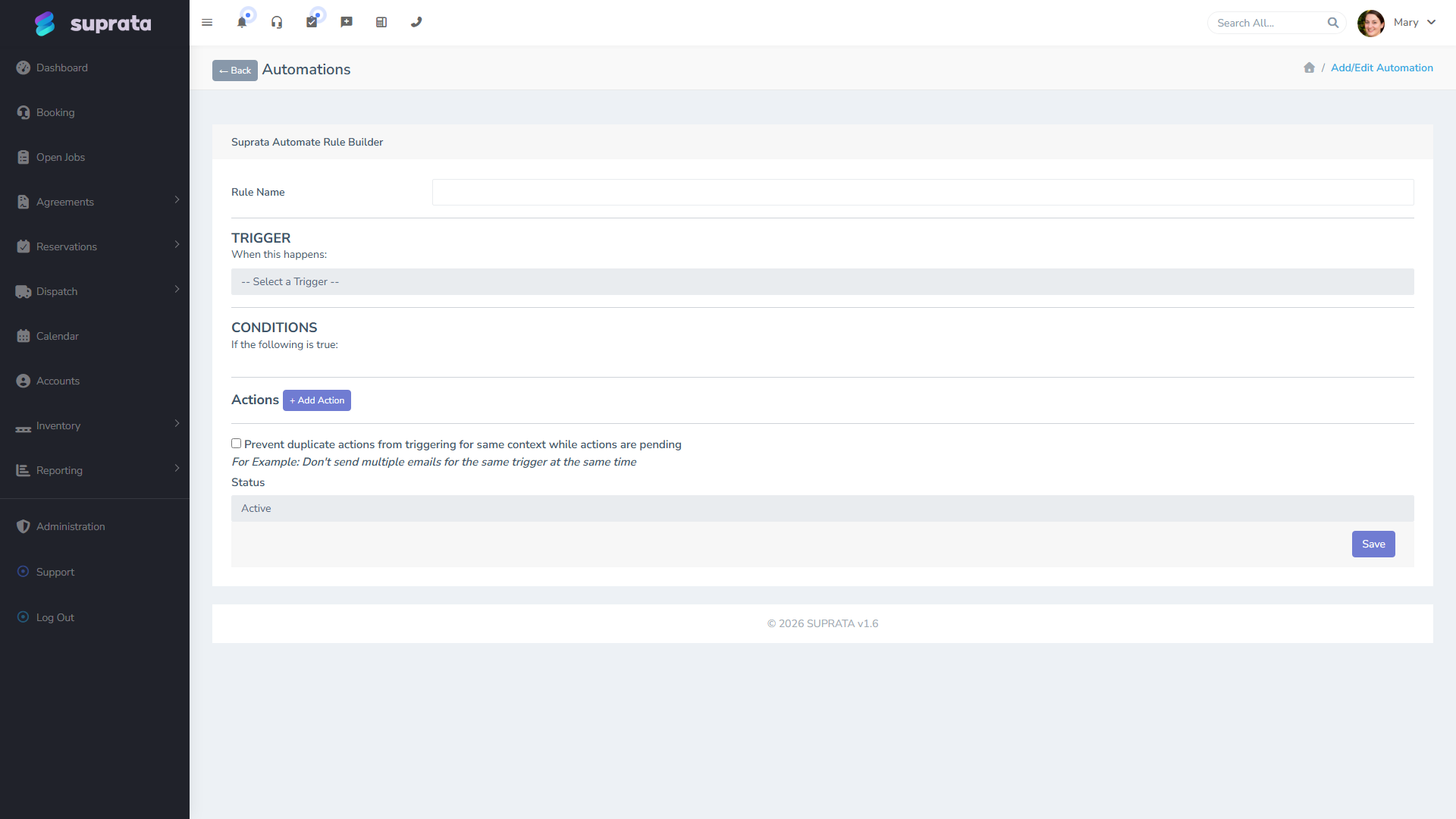
Every automation has three parts:
- A trigger — the thing that starts it. "Job status changed to Scheduled." "Invoice created." "Payment received." "It's now 9:00 AM Monday."
- Conditions (optional but usually used) — filters that narrow when the trigger fires. "Job status changed to Scheduled and the job is more than 24 hours in the future." Without conditions, your automation runs every time the trigger fires; with conditions, only when the situation matches.
- Actions — what to do. Send an email. Send an SMS. Change a status. Create a notification. Create a follow-up task. Most automations have one or two actions.
If you can describe what you want as "When X happens, and the situation is Y, do Z," you can build it. If you can't say it that cleanly in plain English, you don't yet have a clear automation — go back to the drawing board.
What runs and when
Automations don't fire the instant a trigger happens — they queue up and run on a short delay. In practice this means:
- A "send an email" action usually goes out within a minute or two.
- An action scheduled for the future ("send 24 hours before the appointment") runs at the right time, not when the trigger first fired.
- If an action runs into a problem (a bad email address, an opted-out phone number), the system logs it and keeps going. One bad record won't hold up everything else.
If you want something to happen the exact instant a job changes status, an automation isn't the right tool — handle that one manually. For everything else, a one-or-two-minute delay is invisible to the customer.
The right way to build your first automation
- Pick something dull and clearly repeatable. Appointment reminder 24 hours out. Thank-you email after job completion. Past-due nudge at 7 days overdue. Save the clever stuff for later.
- Build it with the test mode first. The builder includes a test runner that simulates the trigger against a known record so you can see what email actually gets sent before any customer sees it.
- Send the first live one to yourself. Set up the automation, then trigger it on a fake record where you're the customer. Read what landed. If it looks wrong, fix it now — not after the second customer complains.
- Turn it on for one customer or a small group first. Don't roll a brand-new automation out to your whole customer list on day one. Pilot it.
- Watch the queue for a week. Are actions completing? Are any erroring? The queue tells you what really happened. If it's clean for a week, expand the scope.
Where automations belong (and where they don't)
Automations are at their best for consistency and cadence. They're not a substitute for relationship management or judgment. The right rule of thumb:
- Automate the part of the job no one wants to do. Reminders. Follow-ups. Status nudges. Mechanical paperwork.
- Don't automate the part of the job that requires reading the room. Apology emails after a service mishap. Custom quotes. Anything where tone matters more than timing.
If you find yourself building automations that try to handle nuanced edge cases — "if the customer is a long-time client and the invoice is high and it's December and…" — you're past the point where the engine helps. Either simplify or accept that this is a manual decision.
Common mistakes
- Turning on automations before you've used the system manually. You'll automate the wrong steps. Wait at least a few weeks of real use before automating anything customer-facing.
- Sending all-or-nothing automations. A single rule that fires for every job ever isn't an automation; it's a megaphone. Use conditions to narrow scope. "Send confirmation only for jobs scheduled more than 24 hours out" prevents same-day-booked customers from getting useless reminders.
- Not testing with a real record. The test mode is there for a reason. Use it before turning anything live.
- Forgetting that automations stack. If you have a "send reminder 24h before" rule and a "send reminder 4h before" rule and you don't condition them, customers get both. Often that's fine; sometimes it isn't. Plan the cadence as a whole, not rule-by-rule.
- Letting failed actions pile up unmonitored. When an automation can't deliver something (wrong email address, opted-out phone number), it logs the problem and moves on. Glance at the log every week or two — silent failures stack up otherwise.
- Confusing an automation with an integration. Automations work inside Suprata. They can send emails, SMS, change a status, create a notification, create a record — all internal to your account. They can't push data to a third-party tool that isn't already connected. For that you need QuickBooks sync or another integration, not an automation rule.
Related articles
- Triggers and actions — the vocabulary
- Three automations most businesses want on day one
- Customizing the appointment confirmation
- (Once "Debugging a misfiring automation" is written, link to it here.)