The permission catalog
Suprata's permission system is fine-grained — the catalog has dozens of individual gates that each control one specific capability. That granularity is good for security (you can give exactly what's needed) but bad for clarity (it's hard to look at a permission name and immediately know what UI it affects).
This article walks through the major permission groupings, the ones people commonly get wrong, and how to think about them when you're building or auditing a role. It's a reference, not a step-by-step.
For the design side of roles — when to make a custom one, how to clone, what to name — see When to create a custom role.
When you'd care
- You're building a new custom role and need to pick the right permission set.
- You're auditing a role and want to know what each granted permission actually does.
- A user is hitting a "you don't have permission" wall and you need to find the gate that's blocking them.
- You're concerned about over-permissioning and want to do a security pass.
Where permissions live
Sidebar: Team Settings → User Roles. Click into any role to see its permission list. Each permission is rendered as a labeled chip you can toggle.
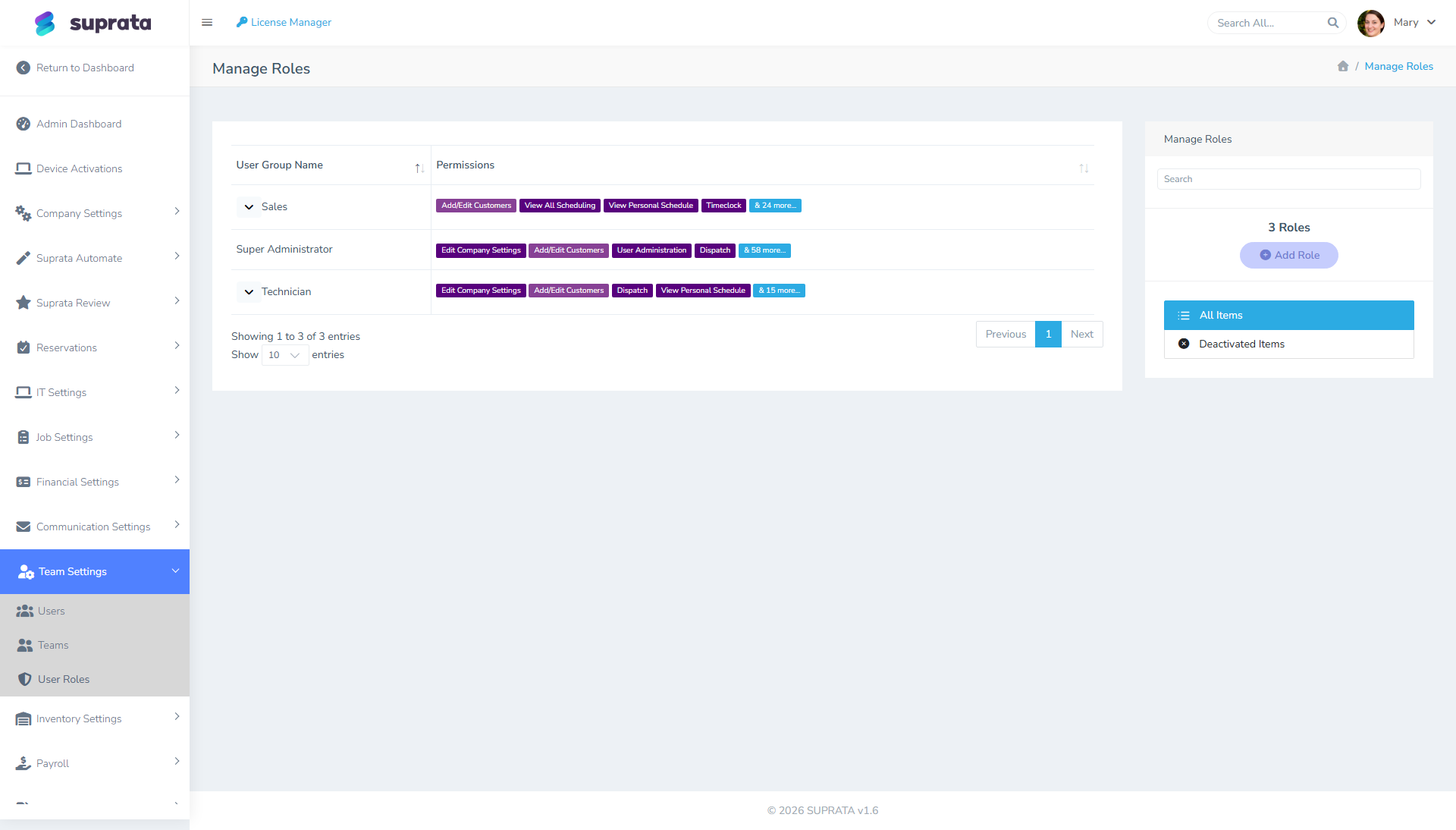
The full master list of permissions (with descriptions) lives at a separate admin URL — but you don't usually browse it directly. You see permissions in the context of a role, where toggling one in or out actually does something useful.
How to think about permission grouping
The catalog clusters into rough functional areas. Knowing the cluster a permission belongs to is more useful than memorizing individual gates.
Settings and admin
Permissions that gate the gear-icon side of the system. These are the most consequential and the easiest to over-grant.
- Edit Company Settings — change the company name, address, timezone, default invoice terms. This is the "global" permission. Anyone with it can change anything settings-related. Grant only to the owner-equivalents.
- User Administration — create, edit, deactivate users; assign roles. This is the second-most-dangerous permission because someone with it can grant themselves more access. Treat as ownership-tier.
- Edit Integrations — connect/disconnect QuickBooks, Stripe, Twilio. Lower-risk than User Administration but still ownership-tier.
Money
Permissions around invoicing, payments, refunds, and credits.
- Create Invoices — make new invoices.
- Edit Invoices — change pricing, line items, terms on existing invoices.
- Apply Payments — record payments.
- Issue Refunds — push refunds back to customer cards. This is a money-out permission and worth a separate gate.
- Apply Credits — issue store credit. Also money-out (effectively).
- Run Financial Reports — see revenue, A/R aging, sales totals.
- Sync to QuickBooks — push records to QB.
The split between Create, Edit, Refund matters. A junior office person should typically be able to create invoices and apply payments but not refund or void without supervisor approval.
Operations
Job, scheduling, and dispatch permissions.
- Create Jobs / Edit Jobs — make and modify work orders.
- Edit Job Status — drive the state machine (Scheduled → In Progress → Complete).
- See All Jobs vs. See Own Jobs — the big one for techs. Without "See All Jobs", a tech only sees jobs assigned to them.
- Schedule Appointments — drag onto the calendar, reassign.
- Edit Job Time Tracking — modify time entries on jobs.
- Delete Jobs — usually granted only to admins.
Business units
These two only matter if your company has two or more active business units, such as several shops or branches. With one unit, nobody sees any difference.
- Switch Business Units — lets the person change the business unit they're working in, using the pill at the top of every page. Without it they stay in their home unit. They can still reach other units' records through search, customer accounts and direct links; their lists just always open on their own unit.
- View All Business Units — lets the person pick "All business units" and see company-wide lists and totals. Without it, their list filters and report totals stay inside the units they may work in.
Neither permission blocks access to records. Business units decide what screens open on, not what someone can reach. When business units arrived, every existing role received both permissions, so nothing changed until an owner took them away. Which units each person may switch to is set per person (home unit and "may work in"), not on the role.
Customer data
- Create Accounts / Contacts — add customers.
- Edit Accounts / Contacts — modify customer records.
- Delete Accounts / Contacts — usually admin-only.
- See Customer Payment Methods — view saved cards (worth gating; most techs don't need this).
- See Customer History — full call/email/job history beyond the current job context.
- Export Customer List — shows the export buttons under the Accounts list. "Export All" downloads every account matching the current filter as a spreadsheet. Off for every role by default (owners excepted). Grant deliberately; see below.
Time and payroll
- Timeclock — the basic punch-in/punch-out.
- Timeclock Administrator — edit other users' punches, view all-user time reports.
- Timeclock Audit — see the history of edits to time entries.
- Edit Job Time Tracking — adjust time entries on specific jobs.
The Administrator vs. Audit split matters. Administrator can change time data; Audit can read the change history. Some businesses (especially in regulated industries) want a separate read-only audit role.
Pricing and inventory
- Edit Pricelist — change item prices, costs, descriptions.
- Import Pricebooks — bulk-import items from a spreadsheet.
- Adjust Inventory — change stock levels.
- See Item Cost — view what an item costs you (separate from what you charge for it).
The "See Item Cost" permission is one of the most commonly mis-set. Many businesses want techs to see prices (so they can answer customer pricing questions) but not see costs (so they don't perceive their own labor margin or get into "well, the part only cost $X" conversations).
Reports
Most reports have their own permission gate. The pattern:
- Run [Specific] Report — granular per-report permissions.
- Run All Reports — meta-permission. Be careful; revenue and payroll reports might be appropriate for the owner only.
A common pattern: techs get no report access (they don't need it); dispatchers get scheduling and operational reports; the owner gets all reports.
Communications
- Send Emails to Customers — outbound mass-email or template-based send.
- Edit Email Templates — modify the templates.
- Send SMS — outbound SMS via Twilio.
- See Inbound Messages — read incoming customer email (IMAP) and SMS replies.
If you have a customer service person, they need send and receive on both channels. A tech might need send-SMS (to text the customer "I'm 10 minutes out") but not receive (which goes to dispatch).
The permissions people commonly mis-grant
Over-granting "Edit Company Settings"
Tempting because it solves "permission denied" issues fast. Side-effect: that person can change your company name, your default tax rate, your invoice terms. Grant only to the 1-3 people who genuinely need to administer the platform.
Over-granting "User Administration"
Same issue, worse consequences: someone with this permission can promote themselves or their friends to admin. Treat as ownership-tier.
Under-granting "See Customer History"
Techs benefit from a brief context on the customer ("we've been here three times for the same complaint" — useful info before a service call). Locking that down too tight reduces tech effectiveness without protecting much. Calibrate.
Under-granting "Edit Job Status"
If techs can't move a job from Scheduled to In Progress to Complete, the dispatcher has to do it for them. Don't restrict status edits unless you have a specific reason.
Over-granting "Export Customer List"
Every other permission in the Customer data cluster controls what someone can see or change inside Suprata, where you can still audit it. Export is the one that produces a spreadsheet on their laptop — names, addresses, phone numbers, email addresses, balances — that leaves with them when they do. It's the permission a departing employee reaches for.
That's why it ships off by default and why it isn't bundled into the roles that already carry account access. Grant it to the specific people who genuinely need lists for mailings, audits, or migrations, and pull it back when the project is over. If someone needs numbers rather than the list itself, a report is usually the better answer — reports show totals without handing over the underlying customer records.
Owners and other full-admin accounts get it automatically, since they hold every permission by definition.
Removing "View All Business Units" from the wrong people
It's natural to strip "View All" from everyone below the owner once shops are set up. Keep it on the roles that need the whole company: the bookkeeper, whoever files sales tax, and whoever settles money between shops at month end. Without it, their revenue, tax and aging numbers cover only their own units and won't match the company-wide totals. Counter staff are the usual candidates for losing it. They typically keep "Switch Business Units" so they can help a customer of another shop.
Granting "Issue Refunds" alongside "Apply Payments"
Refunds are money out. They warrant a separate gate from payments-in. The default A/R role should usually be able to apply payments but route refunds through someone more senior — at least initially, until you have a track record.
Diagnosing a "permission denied" wall
Workflow when a user can't do something they should be able to:
- Identify the action they were trying to take. "Save this invoice", "see the dispatch board", whatever.
- Look at the user's role in Team Settings → User Roles.
- Find the permission that gates the action. If it's not obvious, check whether the same action works for a known-admin user — that confirms it's a permissions issue.
- Grant the permission to the role. This affects everyone in the role — if you only want one person to have it, the right move is usually to assign them a different role rather than expand this one.
Don't fix permission errors by promoting the user to a broader role. That's how techs end up with admin access "for now".
A note on system permissions
Some permissions are marked as "system" — they can't be deleted or renamed because Suprata itself relies on them. You can still turn them on or off for any role, but you can't change what they're called. If a permission won't let you rename it, that's why; it's not broken.
Common mistakes
- Treating the role list as the whole story. A user's effective access = their role's permissions plus any team or department scoping that applies. The role's permission list tells you what they could do; team membership, and the business unit they're working in, shape which records they actually see.
- Granting a permission "to fix it for now" and never revisiting. That's how role drift happens. If you grant something temporarily, set a reminder to remove it.
- Building roles by listing what should be allowed instead of starting from a built-in role. You'll miss permissions you didn't know existed. Always clone an existing role and modify; see When to create a custom role.
- Confusing "see" with "edit" permissions. Many areas have separate gates for read and write. A user might be able to see invoices but not edit them — that's by design, not a bug.
- Not testing the role. After you change a role, log in as a user assigned to that role (or use the impersonation feature if your account has one) and try the workflow. It's the only reliable way to confirm the change did what you wanted.