Warehouses and stock tracking
Warehouses and inventory tracking are some of Suprata's more powerful features and also some of the most over-applied. A lot of service businesses turn them on because they "should" track inventory, get tangled in adjustments and reconciliations, and end up with stock counts that don't match reality. A smaller number of businesses genuinely need real inventory tracking and find these features indispensable.
This article covers the decision (do you actually need this?), the setup mechanics if you do, and the operational discipline that keeps stock counts accurate.
When you need warehouse and stock tracking
Use it if all of these are true:
- You physically stock parts in known locations (a warehouse, a truck, a service van) and care which location has what.
- You track quantity-on-hand as a real number you'd report to your accountant.
- You want stock-level alerts (reorder when below threshold) or per-item movement reports.
- You buy in bulk and use over time (rather than buying per-job, which is "just-in-time" and doesn't really need stock tracking).
- You're prepared to do periodic counts to keep the system honest.
If you order parts per-job and they never sit on a shelf, you don't need this. If you have one shop with one set of parts and don't care about quantities, you don't need this. If you need it on paper but won't actually do counts and reconcile, you'll have an inaccurate system that's worse than none.
Examples that benefit
- HVAC contractor with a parts warehouse and stocked vans. Filters, capacitors, common refrigerant — bought in bulk, used over months, distributed across multiple vans.
- Plumbing company with a shop and trucks. Common fittings, valves, pipe — high turnover, moderate variety.
- Electrical contractor stocking commodity items. Wire, switches, breakers, fixtures.
- Marina with chandlery items for sale. Ropes, hardware, cleaning supplies — actually retailed to customers.
Examples that don't
- A solo handyman. Buys parts at the hardware store on the way to each job. No stock to track.
- A consulting business. Service-only, no parts.
- A reservations business that sells reservations primarily, not goods.
- A tech-savvy small contractor with a single van and 10 commonly-used parts. Could probably manage with a notebook; the system overhead doesn't pay off.
How warehouses work
A warehouse is any physical location where you keep stock. Common types:
- A central shop or storeroom.
- A truck or van (each vehicle is its own warehouse).
- A trade-show booth or pop-up location.
- A consignment location at a customer's site.
The warehouses screen lists each location:
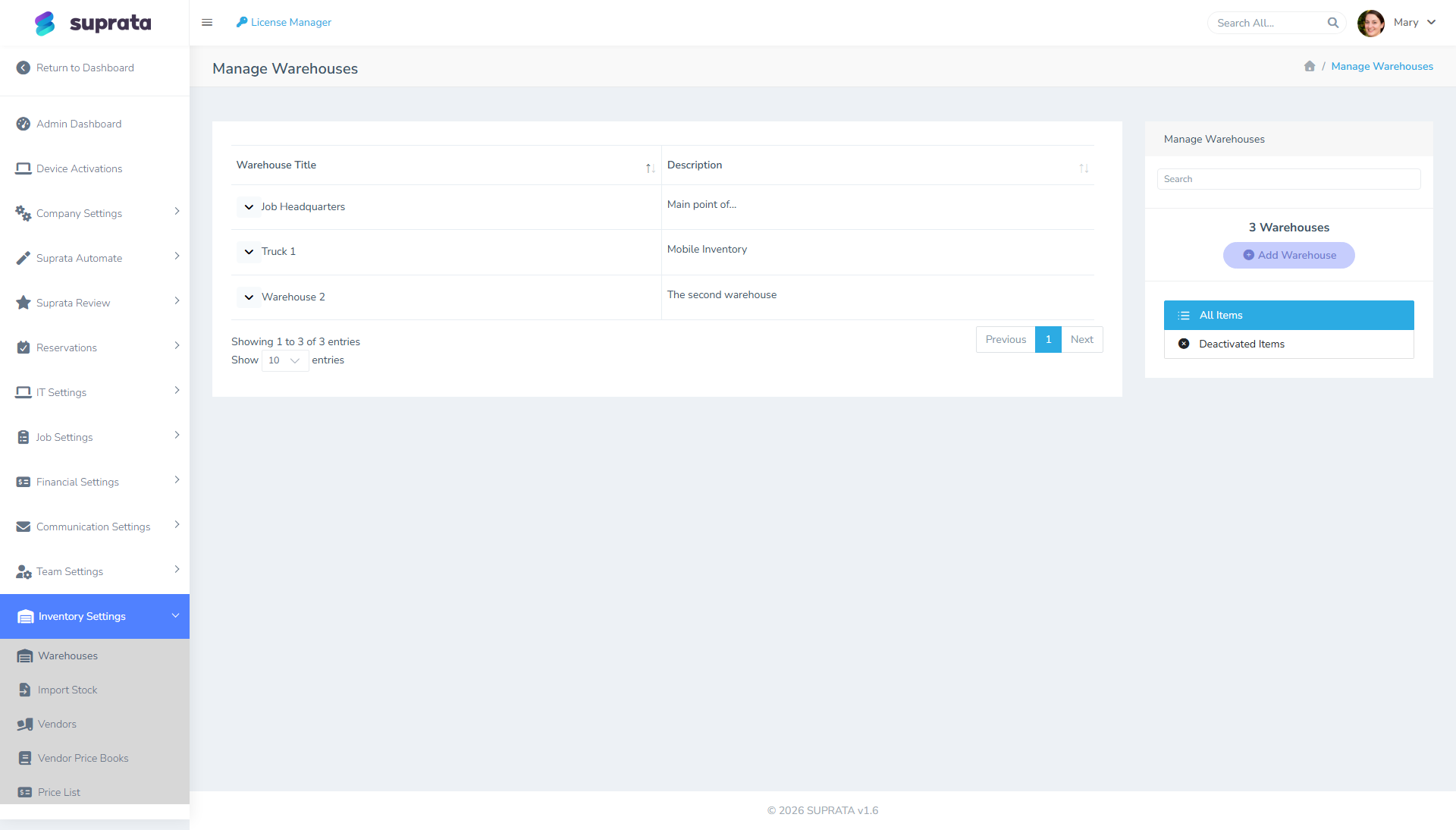
Each warehouse has:
- Name — what you call this location.
- Address — physical location (matters for delivery and tax purposes).
- Type / category — sometimes used to group warehouses (Shop, Vehicle, Customer Site).
- Active flag — disable the warehouse without losing history.
When you sell or use an item, the system can subtract from a specific warehouse's stock. When you receive parts, you specify which warehouse received them. The stock count per warehouse is what you can report on.
Everything lives under Inventory
All of this is one set of screens under Inventory in the left menu: Stock, purchase orders, Receiving, Adjustments, Returns and Movements. A red number next to a menu item means something there is waiting on you (a write-off to look at, items below their minimum, an order ready to send).
Stock: what's in each warehouse, and why
The Stock tab lists every item you keep, with how many are on hand, how many are set aside for jobs (on an estimate, still on the shelf), how many are on order, and what it's all worth at cost. Pick a warehouse to see just that one, or Below minimum to see what needs restocking.
Click an item and you get its whole story:
- how much is in each warehouse, with its minimum and stock up to level;
- every movement, newest first: received on PO-00012, used on job #1042, moved to Van 3, damaged, counted. Each links to the order, job, invoice or record behind it;
- the balance after each movement, so you can see exactly where a shortfall started.
Stock counts are a running balance of four kinds of movement:
- Receipts increase stock: a delivery on a purchase order, or one that arrived without an order.
- Jobs decrease it: a part on an invoice comes off the shelf; on an estimate it's set aside for that job.
- Transfers move it: out of one warehouse, into another, in one step.
- Adjustments and counts correct it: damage, losses, found stock, and the differences a count turns up.
The system keeps the arithmetic. Only a count tells you whether the arithmetic matches the shelf.
Items sold by the foot, the gallon or the box
Set how an item is counted (Counted in: ft, m, gal, box …) on the item, or in the Stock tab when you open it. Quantities can have decimals everywhere: receive 100.5 ft of chain, use 12.25 ft on a job, count 79 ft on the shelf. Leave it blank for things you count one by one.
The receipt-to-job flow
A typical flow:
- Vendor delivers 50 air filters to the shop. You receive them against the purchase order (or, if nobody ordered them, with Receive without an order, which creates the order for you already received).
- Tech loads 5 filters onto Truck #2: a transfer, Shop to Truck #2.
- Tech installs 1 filter on a job. The invoice line takes it out of Truck #2.
- At the end of the week the Shop has 45, Truck #2 has 4. Total 49.
If Truck #2's shelf says 3, a count records the difference, and the item's history shows exactly when the two stopped agreeing.
Adjustments: say why
Every adjustment needs a reason, because the reason is what tells you where your stock goes:
| Reason | What it does |
|---|---|
| Damaged or broken | Takes stock off |
| Lost or missing | Takes stock off |
| Used in the shop | Takes stock off (shop supplies, samples, anything not billed) |
| Expired or spoiled | Takes stock off |
| Found | Adds stock (enter what it cost, or it's valued at your average cost) |
| Correction | Up or down, for fixing a mistake |
A note saying what happened is required, and you can attach a photo (handy for damage). Anything taken off is valued at what it actually cost you, oldest stock first, so the write-off numbers are real money, not list prices.
Big write-offs are flagged, not blocked. Anything over your warning size (set it with the gear on the Adjustments tab; it starts at $250) happens straight away, shows a warning with Undo, and waits under Write-offs to review until a manager marks it Looks right. Nothing sits waiting for approval while the part is already in the dumpster.
Undo works on any adjustment, transfer or count, not only big ones. It puts the stock back exactly as it was, and both entries stay in the history. There is no delete: history you can't erase is what makes the numbers trustworthy.
Parts going back to a vendor are not an adjustment: use Return a part on the purchase order, so the RMA and the credit you're owed are tracked too.
Transfers and restocking a van
A transfer moves stock between two warehouses in one step: the shop goes down, the van goes up, instantly.
To restock a van, give its stocked items a minimum (when to worry) and a stock up to level (how full it should be when it leaves the yard). Then start a transfer from the shop to the van and press Fill what it needs: it adds everything the van is below its level on, as far as the shop has it.
Counts
Use Count (Stock or Adjustments tab) rather than typing corrections by hand:
- Pick the warehouse, and optionally a category. You get a sheet of everything recorded there right now.
- Walk the shelves and enter what's actually there. It saves as you type, so you can stop and finish later, or print the sheet.
- Turn on blind count if you'd rather the counter didn't see the recorded number (people tend to "find" what they expect).
- Post count. Only the items you counted change, by the difference; anything you skipped is left alone.
If something sells while you're counting, the sheet tells you, so a sale mid-count isn't mistaken for a loss.
A monthly count of the shop and a weekly count of each van is a good starting rhythm. High-value and fast-moving items deserve more attention than washers.
Permission gates
Inventory and warehouse functions usually sit behind a permission gate so that not every staff user can adjust stock. Typically:
- Techs can record items used on a job (which decrements stock automatically).
- Inventory managers can record receipts, transfers, and adjustments.
- Admins can do everything plus reconfigure warehouses.
Setting up these permissions is part of users and roles. The default is usually fine for small teams; fine-grained inventory permissions matter once you have multiple warehouse staff.
What does and does not sync to QuickBooks
- Items marked as Inventory in QB can have stock-level updates pushed.
- Sales of inventory items affect QB COGS (cost of goods sold) and reduce QB inventory quantity.
- Vendor receipts (purchases) increase QB inventory.
The QB inventory feature is itself complex and not all QB Online editions support it. Verify your QB plan supports inventory tracking before relying on the sync.
For Suprata-only stock tracking (when QB isn't doing inventory), you still get internal reports — they just don't flow to QB.
Common mistakes
- Turning on inventory tracking without committing to counts. Within months, the numbers are fiction. If you won't count regularly, don't track stock — track cost in pricelist items only.
- Creating too many warehouses. Each truck as its own warehouse is fine for HVAC; each shelf in a single shop is overkill. Match warehouse granularity to how you actually move stock.
- Inconsistent receipt practices. Tech grabs parts off the truck without anyone recording the use; system stock balance drifts immediately. Discipline at the receipt and use level is what makes inventory work.
- Not adjusting damaged or expired stock. Items that physically aren't usable but still show in the system make stock counts wrong. Adjust them out with a damage reason.
- Fixing a count with a Correction. Use a count instead: it records what was expected and what was found, so the difference is explained, not just overwritten.
- Ignoring flagged write-offs. A flag is the system asking a second person to look. Clear them weekly, with Looks right or Undo.
- Confusing pricelist items with inventory items. Service items (labor) don't have stock; product items do. Make sure each item's type is set correctly so the system knows whether to track stock at all.
- Letting truck stock drift forever. Trucks are the warehouses most likely to be off — techs use parts, don't record, and counts get bad. Either count trucks regularly or simplify to one shop warehouse and treat trucks as informal carries.
- Trying to track every little commodity. Screws, washers, electrical tape — items that cost pennies and where counts will always be approximate. Better to set them up as expensed consumables (charged on jobs but not stock-tracked) than to obsess over count accuracy.
- Over-reliance on transfers. Every move from shop to truck logged formally is overhead. If your team is small, set each van's levels once and use Fill what it needs for one transfer a day, or treat shop and trucks as one warehouse and count them together.
Related articles
- Adding items to the price list
- Importing a price list from CSV
- Vendors and vendor price books
- QuickBooks prerequisites
- Purchase orders: from request to receiving (including Restock low items, which reorders anything below its minimum)
- The stock movement report
- Inventory cost reporting (forthcoming)