The Asset Lifecycle: Receive, Assign, Maintain, Bill, Retire
Most service businesses are also, quietly, equipment businesses. You install furnaces and water heaters; you stage tools and trailers; you stock inventory; you track customer-owned equipment so you know what's still under warranty. The thing that breaks is rarely the customer relationship — it's the asset trail. You don't know which compressor went into which house, which trailer the tech took out yesterday, or whether the water heater you're being asked to service is the one your company installed three years ago.
Suprata's asset lifecycle is the connective tissue. It tracks each physical thing — owned by you, owned by the customer, or in transit between — from the moment it enters your world to the moment you mark it retired. This article walks the lifecycle so you understand which subsystem touches which step.
Quick note on naming. This article is about job assets — equipment, tools, and customer-installed items. It is not the reservations subsystem (slips, campsites, RVs available for booking). Those are separate. If you're trying to figure out what bookable assets do, see Creating your first asset in the Reservations section.
When you'd use this
You need this if any of these describe your business:
- You install equipment at customer sites and need to remember which serial number is at which address.
- You stock parts and want to know your on-hand counts before you dispatch a tech with the wrong load.
- You service equipment whose age, model, and history affect the work — a 12-year-old water heater is a different service call than a 12-month-old one.
- You loan tools or trailers to techs and need to know who has what.
- You're trying to do warranty tracking on equipment you sold.
If your work is purely time-based (hourly consulting, lawn care without parts), you don't need most of this. You'll still use the pricelist for labor codes, but the asset side won't earn its keep.
The lifecycle in five stages
+-----------+    +-----------+    +-----------+    +-----------+    +-----------+
|  RECEIVE  | -> |  ASSIGN   | -> | MAINTAIN  | -> |   BILL    | -> |  RETIRE   |
| inventory |    | to job /  |    | service   |    | labor +   |    | mark      |
| stock+    |    | install   |    | history   |    | parts ->  |    | inactive  |
| pricelist |    | at site   |    | accrues   |    | invoice   |    | history   |
+-----------+    +-----------+    +-----------+    +-----------+    | retained  |
                                                                    +-----------+
Five stages, three subsystems doing the work — pricelist/inventory, jobs, and industry forms. We'll walk each.
Stage 1: Receive — into inventory and the pricelist
Every asset enters the system one of two ways:
- As inventory you stocked. A shipment arrives at the warehouse, you record it, the stock count goes up.
- As an item you sold and installed at a customer site. The asset existed at your supplier; it now exists at the customer. You're tracking it because you might service it again.
Either way, the foundation is the pricelist. Every sellable item — a furnace, a part, a labor code, a service plan — has a row. That row carries the unit price, the cost (for margin), the tax category, and a stock-tracking flag if you keep an on-hand count.
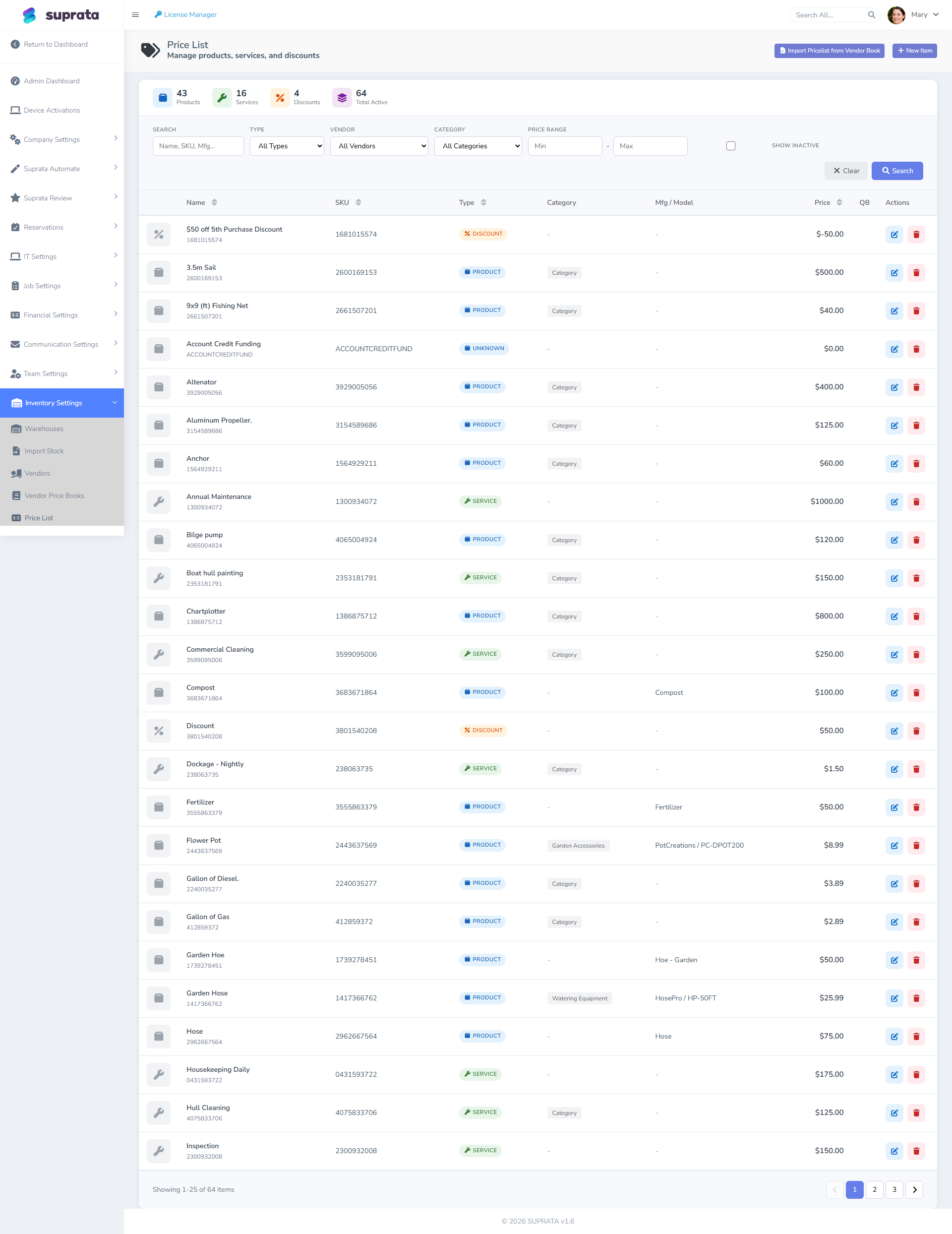
For inventory items (the ones with stock counts), receiving is recorded as a stock adjustment — you specify which warehouse, which item, what quantity, and a reason. The on-hand count increments and an audit row is written so you can later answer "where did these come from."
Two things people get wrong at this stage:
- Treating every part as inventory-tracked. You don't need on-hand counts for screws, fasteners, or anything you'd never reorder by line item. Tracking everything is more work than not tracking anything; pick the high-value items and track those.
- Skipping the cost field on pricelist items. Without cost, your margin reports are garbage. Even an estimated cost is better than nothing.
For the basics, see Adding items to the price list.
Stage 2: Assign — onto a job or installed at a site
Once an asset exists in the system, the next event is assignment. There are three flavors:
- Pulled to a job for use — the tech needs a part for today's service call; you decrement stock and stamp the job's parts list with the line item. The asset is consumed (single-use, like a filter) or temporarily out (a tool, returned at end of day).
- Installed at a customer site permanently — the asset is now the customer's. It enters their account record as an installed-equipment row, optionally with a serial number, model, install date, and warranty terms. From now on, when someone services this customer, the equipment list shows up.
- Loaned out — assigned to a tech, or to a customer for the duration of a job (a loaner unit while their primary is repaired). It comes back; the loan stays in the audit trail.
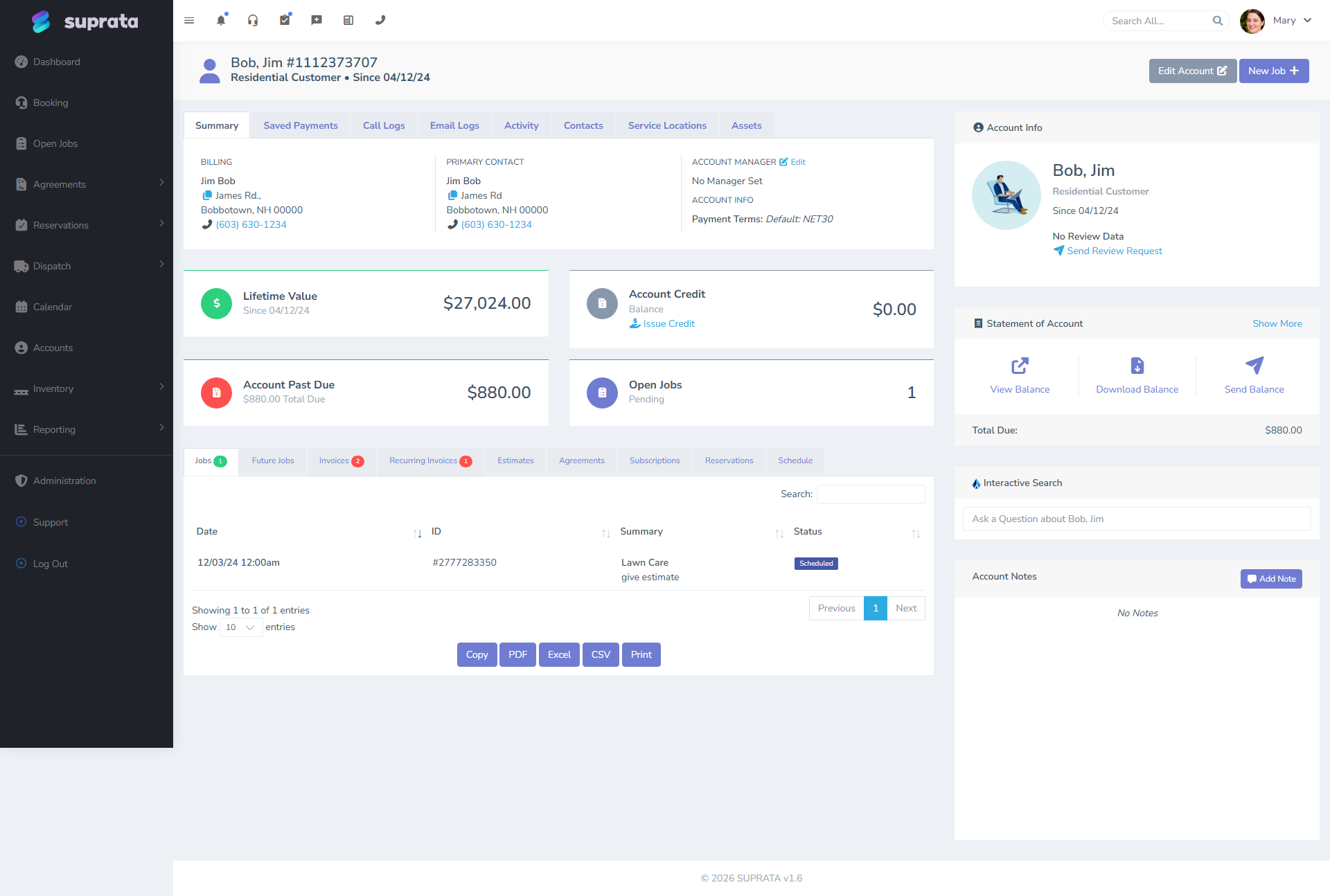
The customer-account surface is where installed assets become useful. The next time a tech is dispatched to that address, the existing equipment is right there: model, serial, install date, last service. The tech doesn't have to ask "what brand water heater do you have?" — they already know.
Stage 3: Maintain — service history accrues per asset
When a customer calls for service on an existing piece of equipment, the job is created and tagged to the specific asset. From that point, every visit that touches the asset gets recorded against it:
- What was done — diagnostics, repair, replacement of a sub-component.
- Parts used — pulled from the pricelist, decrementing stock, attached to the job's invoice.
- Time spent — labor hours, billed on the job.
- Photos and notes — what the unit looked like, what the tech observed.
- Industry-form responses — the structured questions for that work type.
Industry forms are how you make the maintenance step structured instead of ad-hoc. An HVAC service form asks for refrigerant levels, capacitor readings, and filter condition. A water-heater service form asks for anode condition and pressure. The form's responses live with the job; over time, looking at a single asset shows you a chronological history of everything that's been measured and replaced.
Why this matters: the difference between a 30-minute service call and a 2-hour mystery is whether the tech walks in knowing the unit's history. If they can see "last visit, capacitor was at 80% capacity," they go in with a capacitor in the truck. If they can't, they're driving back to the shop.
For the structured-data side, see Creating your first job and the industry-form attachment described in The job-to-invoice chain.
Stage 4: Bill — labor and parts roll into the invoice
The billing step is mostly automatic if the prior steps are clean. Every part pulled from the pricelist on the job becomes an invoice line; every labor entry rolls in at its mapped labor item. Tax is allocated per line based on the tax category from the pricelist row — the same chain described in The job-to-invoice chain.
Two asset-specific things to know:
- Warranty work. If the asset is under warranty (you sold it within the past N years; or the customer has a service plan that covers parts), the line items are still recorded on the job — but they're marked as warranty-covered and the customer-facing total is adjusted. This keeps your inventory honest (the part was used, so stock decrements) without billing the customer.
- Customer-supplied parts. If the customer supplied the part, you still want it on the job for history, but it shouldn't bill. Use a non-billable line item or a zero-priced "customer-supplied" pricelist row. The asset history is preserved; the invoice doesn't double-charge.
The invoice flow from here is the standard one — close, sync to QB, accept payment. See Sending an invoice to a customer.
Stage 5: Retire — mark inactive, history retained
Eventually an asset leaves your world. The unit fails permanently and is replaced; the customer moves and the new owner brings their own; the tool falls off the truck and is gone forever. You don't delete it — you mark it retired.
Retired assets:
- Disappear from active lookups. A tech dispatched to that address won't see the retired unit in the equipment list anymore.
- Remain in history. The job audit, the invoices, the service entries — all still reference the asset by ID. Nothing breaks.
- Are excluded from reports that filter on "active assets." Your asset count, your warranty-coverage count, your warranty-revenue projections all stop counting the retired ones.
What this gets you: a clean active list with a complete historical record. You can answer "how many water heaters do I have under active warranty" without dragging in 15 years of replaced units, and you can still answer "what's the service history on the unit at 123 Main Street" because the row never went away.
How industry forms tie into the chain
Industry forms are the structured-data layer that makes the maintenance stage useful. Each form is a custom set of fields specific to a vertical or work type — HVAC startup checklist, marine winterization, plumbing rough-in inspection, electrical panel survey. When the form is attached to a job, the tech fills it out in the field; when the job closes, the responses live with the job and with the asset.
A few patterns where this pays off:
- Equipment surveys — first time you service a unit, fill out a survey form (manufacturer, age, condition, photos). Subsequent visits inherit the survey, so you don't re-collect every time.
- Compliance records — for jurisdictions that require periodic inspections (commercial fire suppression, backflow prevention), the form's responses are the record. Print the historical responses, hand them to the inspector.
- Warranty validation — a form filled out at install time that captures the manufacturer's serial, install date, and customer signature is what you'll need years later when a warranty claim comes in.
Forms are configured per account. The defaults cover the major trades; customizing them is part of advanced setup, beyond the scope of this article.
Common breakdowns
- Stock corrections done in someone's head, not in Suprata. Someone eyeballs the warehouse, sees the count is off, mentally adjusts, never records anything. Now the system count and reality are out of sync, and there's no record of when or why. Fix: always go through the stock-adjustment screen — even for a "found one in the back" correction. The reason field is what tells the story later.
- Customer-installed equipment never recorded. The tech installs the unit, gets the customer's signature, leaves. Nobody enters the install in the customer record. Three years later, someone calls about a leak and the system says they don't have a water heater. Fix: make the equipment-record creation part of the install job's close-out checklist. It should not be possible to close certain job types without recording the installed equipment.
- Multiple assets at one address with no way to tell them apart. A property with three rooftop units, all listed as "Trane HVAC". When the customer says "the south one is leaking," nobody knows which is which. Fix: unique identifiers on the asset record — a serial number, an in-house tag, a location descriptor. "Roof, southwest corner" beats "Trane HVAC #3."
- Stock counts drift over time, then nobody trusts them. Once the count is wrong by enough to notice, people start ignoring it, and the divergence accelerates. Fix: cycle counts. Once a quarter, count one section of the warehouse and reconcile. Don't try to count everything at once; that's why nobody does it.
- Retired assets still showing up in dispatch screens. The retire flag wasn't set, just a status text changed. Fix: there's a specific retire action; use that, don't free-text "retired" into a notes field.
- Warranty work billed to the customer because the warranty flag wasn't set on the line. The system didn't know to suppress the charge. Fix: the warranty toggle is per-line; verify it before invoice close. If you do a lot of warranty work, set up a coverage rule that auto-flags eligible items.