Creating Your First Asset
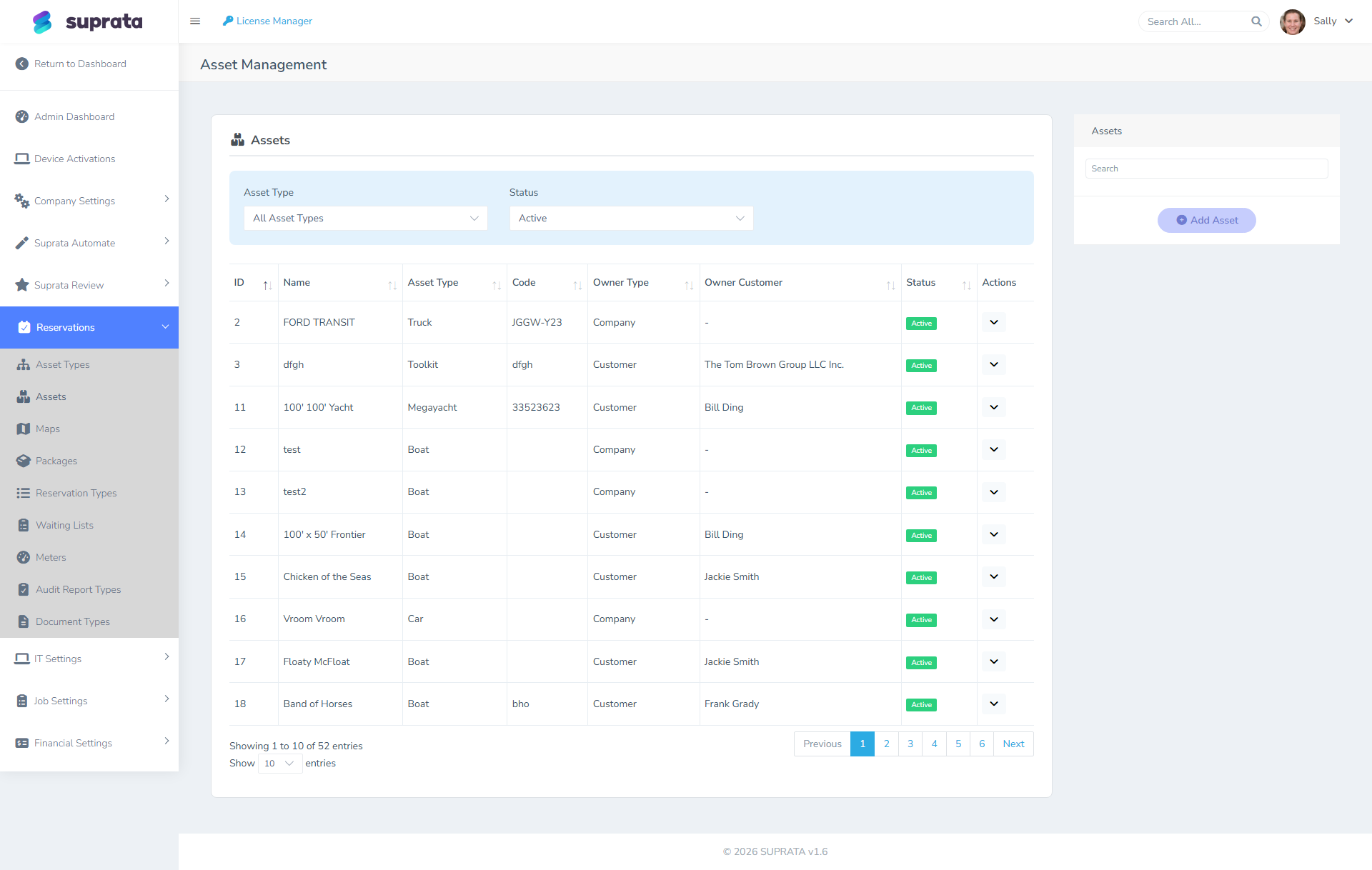
An asset is one specific physical thing customers can book: Slip A-12, Site 47, Cabin 3, Storage Unit 105. You'll have many. You should create one first, book it end-to-end, fix what doesn't work, and only then bulk-add the rest.
Resist the urge to enter all 200 of your assets up front. The first asset is a smoke test for your asset-type setup, your pricing, your required documents, and your booking flow. If something's wrong, it's easier to fix on one asset than on two hundred.
When you'd use this
Right after you've defined asset types (Setting up asset types) and before you do anything else in Reservations. This article assumes:
- You have at least one asset type defined.
- You haven't yet created any assets, or you've created a few and they're not behaving the way you expect.
If you don't have asset types yet, stop and do that first. Assets without a type are unmoored and most of the system doesn't work right on them.
Required fields and what they mean
When you create an asset, a few fields are non-negotiable. Most others have sensible defaults from the asset type.
Name (required)
The label that appears on every booking, every invoice, every map pin. Choose a naming convention before you start typing — it'll save you renaming work later.
Good conventions:
- Slips: Dock letter + slip number. "A-12", "B-7", "C-23". Predictable, sortable, prints clean on receipts.
- Sites: Pure number, sometimes with a section letter. "47", "112", "B-15". Most parks just use the painted-post number.
- Cabins: Cabin name or number. "Cedar", "Birch", "Cabin 3", "Lakeside Cottage".
- Storage: Building + unit. "104", "B-23", "Climate-7".
Avoid spaces if you can help it (some integrations stumble on them) and never use the same name twice.
Asset type (required)
Pick the type this asset belongs to. The type pushes defaults down: rate, deposit, required documents, late-fee rule. If none of your existing types fits, don't force it — go back and add the right type first.
Status / availability
Whether this asset is currently bookable. New assets default to active. Set to inactive (or maintenance, or out-of-service depending on your wording) when:
- The slip is being repaired.
- The site is closed for the off-season.
- You're transitioning the asset between long-term tenants and want to block transient bookings during turnover.
Inactive assets stop appearing in availability searches but their historical reservations stay intact.
Optional fields worth filling in
These aren't required, but skipping them costs you later.
Length / dimensions
For slips and sites, record the actual usable length. The booking wizard can filter by boat length or RV length, which is the most common search customers make. Skip it and your customers (or your front-desk staff acting on their behalf) will book a 45-foot cruiser into a 38-foot slip and you'll discover it at check-in.
Per-asset rate override
If this asset is the corner site with the lake view that goes for $10 a night more, set the override here. The asset-type default still applies to its 39 siblings.
Position on map
If you've uploaded a property map (Uploading and configuring your property map), pin this asset to its (x, y) coordinate. Booking staff and customers can click directly on the map to start a booking. You can do this later — it's not blocking — but visual booking is one of the system's better features and worth setting up.
Notes / special instructions
Things like "tight backing — recommend pull-through customers only" or "fixed pier on north side, finger pier on south" or "gate code rotates monthly, see ops manual." These show up in the booking wizard for staff eyes only.
The first-asset workflow
Here's what we recommend literally for your very first asset, before anything else:
- Pick the most representative asset type — the one that covers the largest share of your real inventory. Don't pick the weird one (the one corner site with the special rate). Pick a normal, middle-of-the-road one.
- Create one real asset of that type. Not "Test Slip" — a real one you'll actually rent. The reason is you'll discover the system works correctly only if you push it through real flows.
- Book it for a real-looking date range using the booking wizard, with a real test customer (you, with your personal email).
- Walk through everything that should happen: Did the deposit invoice get created? Did the confirmation email send? Does the timeline view show the booking? If you've configured late fees and the dates straddle a month, does the settlement run preview the right number?
- Cancel that test reservation and clean it up.
- Now — and only now — bulk-add the remaining assets of every type. You can usually do this quickly because the type carries the defaults.
Bulk-adding the rest
Once your first asset works, the easiest way to add the rest depends on volume:
- Under ~25 assets: Just type them in. It takes ten minutes.
- 25–200 assets: Use a CSV import if available, or split the work between staff.
- Over 200 assets: Talk to support before pasting in a giant CSV. If your asset types aren't quite right, a bulk import multiplies the cleanup. A 15-minute call up front saves hours later.
Common mistakes
- Creating assets before asset types. The asset has nothing to inherit from. The defaults you wanted are missing. Painful to fix retroactively.
- Naming inconsistencies. "Slip A12" on one asset and "Slip A-12" on the next. Reports group by name; mixed naming makes everything look like two different things. Pick a convention and enforce it.
- Skipping the length / dimension fields. Booking flows that filter by size don't filter correctly. Customers self-book into slots that don't fit them.
- Pinning everything to the map at once before the map is the right size or scaled correctly. If you swap or rescale the map image later, every pin drifts. Get the map right first, then pin.
- Marking active assets as inactive when temporarily empty. Empty isn't the same as out-of-service. Just leave it active and let the next reservation fill it. "Inactive" is for when the asset literally cannot be rented (under repair, off-season).
- Trying to "fix" reservations from outside the booking wizard. Don't. The wizard runs the availability and conflict checks that prevent double-bookings. Always change reservations through the wizard or the reservation edit screen.