Email deliverability — fixing 'going to spam' issues
The most-reported "Suprata bug" that turns out not to be a Suprata bug: customers say they didn't get an invoice, and you find it sitting in their spam folder. Outbound mail leaves Suprata fine — what fails is the receiving mail provider's decision about whether to trust your domain.
That decision is mostly driven by DNS records you control, not by anything Suprata does. This article is the diagnostic order to follow when mail is landing in spam, and the three records (SPF, DKIM, DMARC) that fix the vast majority of cases.
When you'd use this
- A customer just told you "your invoice went to my junk folder." Don't ignore it — one customer reporting it usually means several others have it happening and aren't bothering to mention it.
- You sent yourself a test from the Email Configuration screen and it landed in spam. Fixable; don't shrug it off as bad luck.
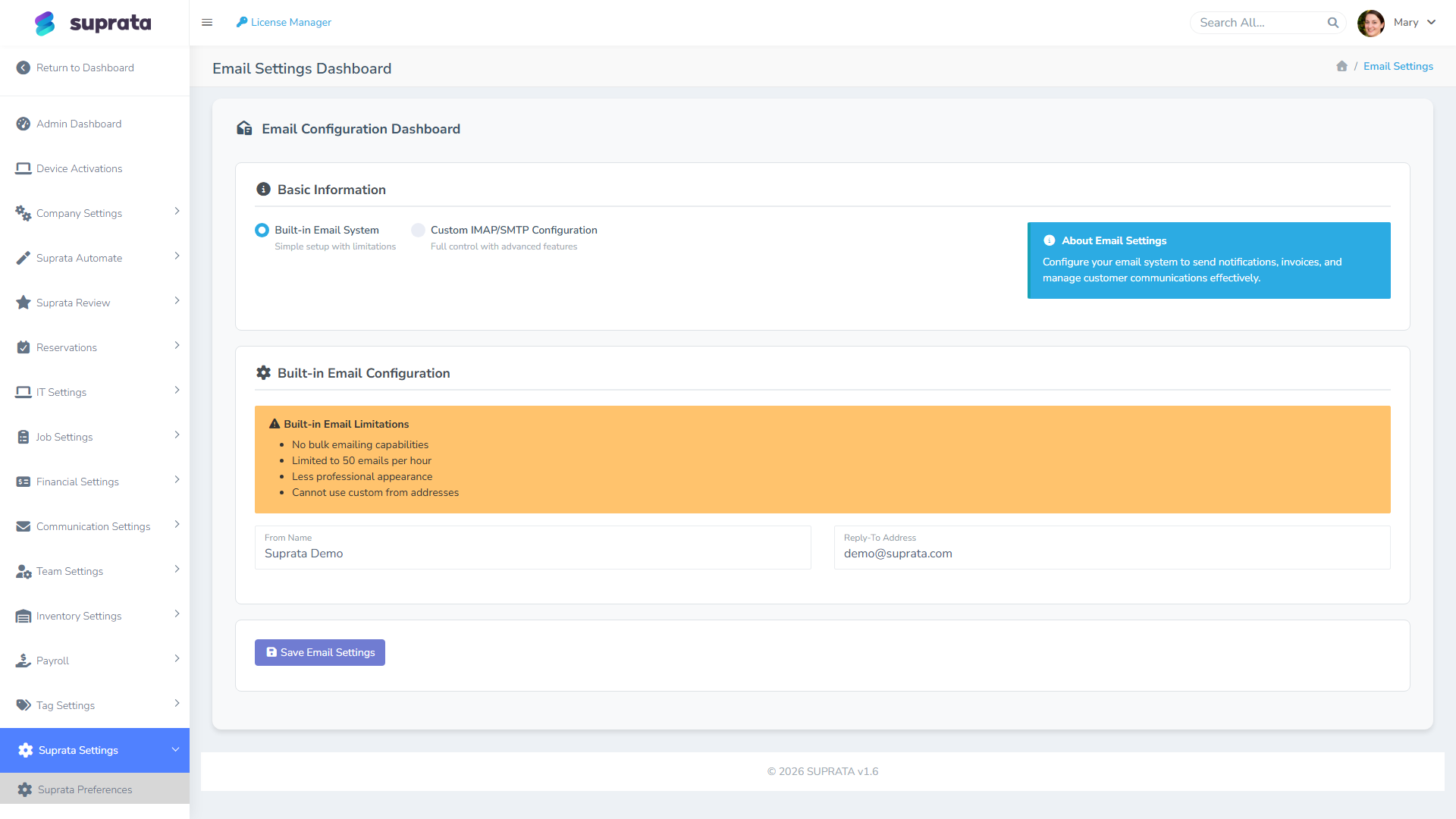
- You just switched from the Built-in Email System to Custom SMTP and customers started reporting missed emails. Custom SMTP needs DNS records that Built-in didn't.
- Gmail or Yahoo started bouncing your mail. Both providers tightened their requirements in early 2024, and mail that had worked for years started getting filtered.
- You're seeing a "bulk unauthenticated" warning in Postmaster Tools or Microsoft SNDS.
The three records you need to understand
The big email providers (Gmail, Outlook, Yahoo, Apple Mail, AOL — between them, almost every customer mailbox) decide where your mail lands based on three DNS records on your sending domain. They aren't optional anymore for any real volume.
SPF — who's allowed to send for your domain
A DNS TXT record at the root of your sending domain (for example, yourcompany.com) listing every server authorized to send mail as @yourcompany.com. If a receiving provider sees mail coming from a server not in that list, the provider treats it as suspicious.
A typical SPF record for a Google Workspace user:
v=spf1 include:_spf.google.com ~all
A Microsoft 365 user:
v=spf1 include:spf.protection.outlook.com -all
Common error: multiple SPF records on the same domain. A domain may have only one SPF TXT record. If you've added SPF for Google, then later added SendGrid as a separate record, mail providers see both and most will treat the situation as "no valid SPF". Fix by merging into a single record:
v=spf1 include:_spf.google.com include:sendgrid.net ~all
DKIM — a cryptographic signature on every message
DKIM stamps each outbound message with a digital signature that the receiving provider can verify against a public key in your DNS. If the signature checks out, the receiver is confident the message wasn't forged or modified in transit.
DKIM is provider-specific. Your SMTP provider gives you a DNS record (or, more commonly now, a CNAME) to add. The exact value depends on the provider — Google Workspace, Microsoft 365, SendGrid, Postmark, and Amazon SES each provide their own DKIM setup walkthrough.
As of early 2024, Gmail and Yahoo will refuse to deliver mail that doesn't have DKIM, once you're sending more than a trickle. This is the single most important record for landing in Gmail inboxes.
DMARC — what to do when SPF or DKIM fails
DMARC is a policy: it tells the receiver how to handle mail that fails SPF and DKIM checks (deliver anyway, send to spam, reject outright) and where to send aggregate reports about authentication results.
A starter DMARC record:
v=DMARC1; p=none; rua=mailto:dmarc-reports@yourcompany.com;
Recommended progression:
- Start with
p=nonefor two weeks. This monitors only — nothing changes about delivery, but you receive daily reports showing which mail is passing and which is failing authentication. - Move to
p=quarantineonce the reports are clean. Failing mail goes to spam. - Move to
p=rejectonce you're confident. Failing mail is rejected outright.
Skipping the monitoring phase and going straight to p=reject is how you find out three weeks later that legitimate mail you forgot about (your accountant's monthly newsletter, a payroll provider sending from your domain) was being thrown away the whole time.
Diagnostic order when a customer reports spam
Walk this list in order — don't skip ahead.
1. Reproduce it
Send a test from your Email Configuration screen to a Gmail address you control, an Outlook address you control, and a Yahoo address you control. Do all three land in inbox? Or do any go to spam?
2. Check the message's authentication results
Open the test mail in Gmail. Click the three-dot menu → "Show original". Look at the headers — specifically the Authentication-Results line. It will say:
spf=pass dkim=pass dmarc=pass— you're authenticated. The spam landing is likely about content or reputation, not setup.spf=fail— your SPF record doesn't authorize the sending server. Fix: add the rightinclude:to your SPF record.dkim=noneordkim=fail— DKIM isn't set up, or the DNS record is wrong. Fix: get the DKIM CNAME from your provider and publish it.dmarc=fail— SPF and DKIM both failed, and your DMARC says quarantine/reject.
3. Check that From-address alignment is correct
If you send through SendGrid but your From address is billing@yourcompany.com, your DKIM signature must be aligned with yourcompany.com — not with sendgrid.net. Misalignment is a common cause of dmarc=fail despite "having SPF and DKIM."
4. Check your sending domain's reputation
For Gmail recipients: sign up for Google Postmaster Tools (free) and add your sending domain. It shows you the reputation Gmail has been assigning to your domain over the last 30 days. If it says "Bad" or "Low," that's why mail is landing in spam, and you'll need to:
- Stop sending to old, stale, or bounced addresses — clean up your contact list.
- Slow down sending volume for a couple of weeks while reputation recovers.
- Make sure you're not sending anything customers didn't ask for.
5. Check the message content
Once authentication is fine, then look at content:
- A subject line in ALL CAPS or with
$$$flags it. - A message body that's a single image with no text looks like a spammer trick.
- A
Fromname that doesn't match the actual sending domain (e.g. "Microsoft Support" coming from@yourcompany.com) sets off filters. - Lots of links — especially shortened ones — raise the spam score.
But fix the DNS records first. Most spam reports clear up before content ever becomes the issue.
Built-in vs. Custom SMTP and what each requires
- Built-in Email System. Suprata sends from its own authenticated domain. No DNS work for you — but the From address shows a Suprata-affiliated address, which looks less professional, and there's a hard limit on how much mail you can send this way.
- Custom SMTP through Google Workspace or Microsoft 365. SPF and DKIM go in by adding the records each provider documents in their admin console. Plan on about 30 minutes.
- Custom SMTP through a dedicated email service (SendGrid, Postmark, Amazon SES). Same idea — add the SPF include and the DKIM CNAME the service gives you. These services are built for sending business email, so deliverability tends to be better than running through a personal mailbox.
Common mistakes
- Adding a second SPF record instead of merging. Two SPF records is functionally the same as no SPF record. Merge.
- Skipping DKIM because it sounded technical. It's a single CNAME record. You can't reach Gmail inboxes reliably without it anymore.
- Setting DMARC to
p=rejectimmediately. You'll silently break legitimate mail flows you didn't know existed. Start withp=none, watch the reports for two weeks, then tighten. - Sending from a free
@gmail.comor@yahoo.comFrom address. Those providers prevent any other system from sending as them. Always send from your own domain. - Using a
noreply@address customers can't reply to. They'll reply anyway. The bounce-back confuses them and they walk away frustrated. Use a real reply-to address. - Treating spam reports as flukes. One reported spam landing usually means several more that weren't reported. Take the first one seriously.
- Forgetting to refresh DNS records when you switch providers. You moved from SendGrid to Postmark but left the SendGrid include in your SPF. Every time you switch, audit your SPF.
When to escalate
If you've added all three records, the test mail still lands in spam, and Postmaster Tools shows "Good" reputation, you're looking at a content or list-quality issue rather than authentication. At that point, contact your email provider's support team — they can see things you can't, and keeping their sending reputation clean is in their interest as much as yours.