The Print Work Order
Most jobs in Suprata happen entirely on a screen — the dispatcher schedules, the tech updates from a phone or tablet, the customer signs digitally, the invoice is emailed. But "entirely on a screen" doesn't fit every job. Some customers don't have or trust email. Some sites have no signal in the basement equipment room. Some techs prefer to walk in with a printed sheet and check things off in pencil. For all of these, the print work order is the answer.
The print work order is a PDF rendering of a job that you can preview, print, hand to a customer, leave in a service vehicle, or fax to an insurance adjuster who's still living in 1997. This article covers when paper is genuinely the right tool, what the PDF includes, and the failure modes that come from over-relying on it.
When you'd use this
- Paper-friendly customers. Older residential customers, certain government and military contracts, some property management companies — they want a physical work order at the time of service. Don't fight it; print one.
- Vehicle copies. A driver wants a printed sheet on the dashboard so they know what they're walking into without unlocking the phone.
- Multi-tech jobs. Two or three techs sharing a job; one master sheet on a clipboard saves everyone re-loading the app.
- No-signal sites. Basements, deep rural, large industrial complexes — the tech enters with paper and reconciles after.
- Documentation hand-offs. A subcontractor needs the job spec in an email-able PDF; the printable work order is what you send.
- Insurance and warranty paperwork. Adjusters routinely want a "work order" they can scan into their own systems. The PDF is purpose-built for this.
What's on the printed page
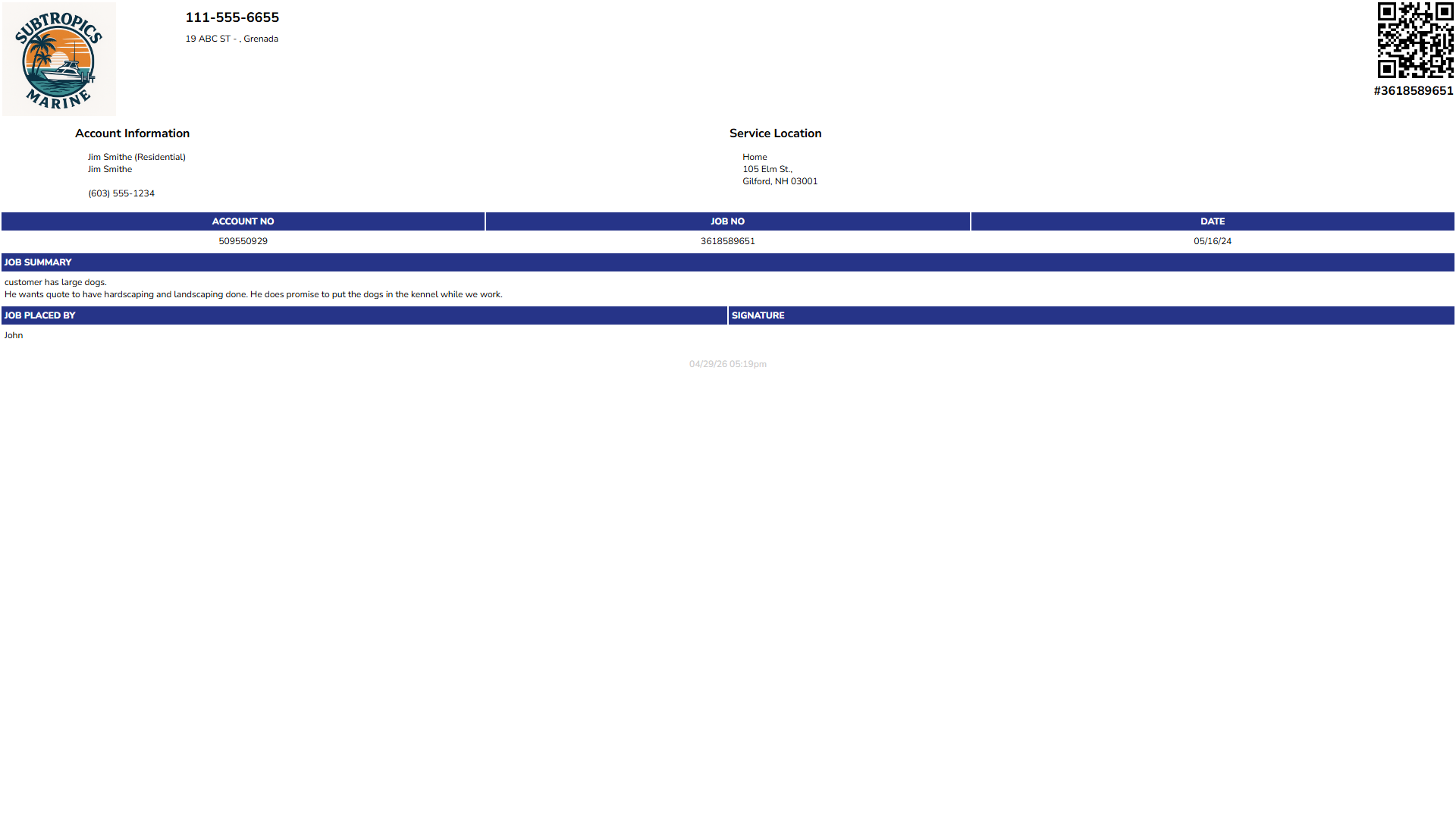
The print work order pulls together the job's identifying information into a single, paper-laid-out document:
- Header with your company name, logo, and contact info (pulled from your company profile — see Setting up your company profile).
- Job number prominently displayed for easy reference.
- Customer Account block — name, billing address, and primary contact info.
- Service Location block — where the work is happening, if different from billing.
- Job summary and description — the same text the dispatcher and tech read on screen.
- Scheduled date/time and assigned tech(s).
- Line items for parts and labor (if added before printing).
- Industry form data — depending on your settings, the relevant form fields print on the same sheet (e.g., HVAC unit info, marine boat info). See Industry forms — what attaches when.
- Notes — internal and customer-visible, depending on configuration.
- Signature blocks — places for the customer to sign on arrival authorization, completion, and (optionally) payment.
- Terms and conditions — your standard T&C language.
You usually access the print view from the job's detail page — there's a "print" or "PDF" action that opens the rendering in a new tab. From there, browser print produces a paper copy; download produces a PDF you can email or attach.
How the print version differs from the on-screen view
The on-screen job has tabs, attachments, an activity timeline, and a thousand actions you can take. The print version is a snapshot — what the job looks like right now, formatted for paper. Things to know:
- It's not a live document. Once printed, it's frozen. If you update the job, the printed copy doesn't update — print again or note the change in the customer's hand.
- It typically excludes private internal notes (tech-only commentary). Customer-facing notes do print. Check your account's configuration before relying on this — if the wall between internal and customer-visible notes hasn't been set up, all notes print.
- Photos and attachments don't print by default. Most accounts skip them in the printed version because they bloat the page count and leak detail the customer might not need to see. Some configurations include thumbnails or a final "attachments" page; check yours.
- The signature blocks are blank space on the printed page. They're for ink. The digital signature flow on the tech's device is separate and produces a different, embedded signature image.
Recommended printing posture
Most service businesses fall into one of three paper postures. Pick yours and be consistent:
1. All-digital. No printing. Customer sees and signs on the tablet, gets emailed PDFs after, and everything else is screen-based. Works for tech-comfortable residential and small-commercial customers. Saves a tree, saves clipboard time. The print feature is reserved for the rare insurance / paper-customer situation.
2. Hybrid by default. Tech prints a one-page work order at the start of the day for each scheduled job, brings them in a clipboard, fills in tally marks during the visit, and reconciles to the digital record at the end. The paper is operational scaffolding, not the system of record. Common in trades where techs work in dirty/wet conditions where touching a tablet is annoying.
3. Paper-first. The customer wants paper. The tech prints, fills in by hand, gets ink signature, returns to the office, and an admin types the relevant fields into the system. This is the most labor-intensive workflow because of the double entry, but in some industries (older customer base, specific regulatory environments) it's what wins the customer.
If you're in posture 3 and getting tired of double-entry, ask yourself whether all your customers really need paper or only some — going hybrid for the ones who don't can recover hours per week.
Setting up the print work order's appearance
Most accounts have a print/PDF settings area where you can tune:
- Logo and header layout — uses your company profile's logo by default, but the print view often allows a different (higher-resolution) one specifically for printing.
- Which sections appear — toggle the inclusion of photos, internal notes, line item totals, terms and conditions, etc.
- Signature block configuration — how many signature blocks, what each is for ("Authorize Work", "Acknowledge Completion", "Confirm Payment").
- Footer / fine print — your business license number, jurisdictional disclosures, hours.
Spend 20 minutes here on initial setup. The defaults are functional but generic — a tuned print layout makes your business look more professional than the default, especially to the paper-loving customers who'll be most exposed to it.
Common mistakes
- Printing the work order and relying on the digital flow simultaneously without reconciling. Now you have two records that disagree, and the audit trail tells two different stories. Pick one as canonical (almost always digital) and treat the paper as a working copy.
- Printing before the job is fleshed out. A tech prints at 7 AM for a job that's still missing the Service Location, then drives to the wrong building. Print after the job is complete enough to be useful — usually after dispatch finalizes the day.
- Customer signature on paper, then forgetting to upload or transcribe. The paper signature is meaningless to the system if it never makes it back. Either scan/photograph it back into the job's attachments (so the digital record reflects reality), or transition to digital signature for that customer.
- Sending the printed PDF to a customer instead of using the customer-facing view. The customer portal is a richer, live, interactive view. The PDF is a snapshot. If a customer is comfortable with email and a portal login, send them there, not a static PDF — the portal updates as the job evolves; the PDF doesn't.
- Over-customizing the print template until it doesn't fit on a page anymore. A well-designed work order is one or two pages. If yours is sprawling to four because of every conceivable note and form field, trim — your tech is more likely to read a one-pager.
- Letting "we always print" become a tax on every job. If 90% of your customers are fine with digital and 10% want paper, don't print all 100%. Print on demand for the customers who want it.
- Forgetting to update the print template when you re-brand. A logo refresh that updates the website but not the print template means every printed work order looks dated for years.
A note on PDFs vs. browser print
The print view renders as a web page first; "print" is the browser's job. The PDF download is a server-rendered version that's identical in content but more reliable for emailing (no missing fonts, predictable page breaks). Use the download-PDF for anything you're sending; use browser print for actually putting paper on a clipboard.
Related articles
- Creating your first job
- Closing and recalls
- Job attachments — photos and signatures
- Industry forms — what attaches when
- Setting up your company profile
- Sending an invoice to a customer
- Configuring print and PDF settings (forthcoming)