Onboarding a Commercial Customer
A commercial customer onboarding is not a residential onboarding with a different name. It's a different shape of relationship — and if you treat it like a residential setup, you'll spend the next year getting invoices to the wrong inbox, dispatching to a manager who doesn't know who you are, and chasing payments because nobody told you the AP cycle is the 15th and the 30th, not "on receipt."
The defining feature of a commercial relationship is that the person paying and the person you talk to are almost never the same person. You have to model the organization, the people inside it, and their separate roles. Suprata supports this cleanly — you just have to know how.
This article walks through the full intake. It takes ten or fifteen minutes if you do it well, more like thirty for a complex multi-site organization. That's longer than residential, but it's a one-time cost that pays back many times over.
Why this looks different from residential
Three fundamental differences from a residential onboarding:
- The Account is an organization, not a household. It has an Organization Name, possibly a DBA, possibly a parent company. The account type is Commercial (or one of your custom organization types), not Residential.
- You'll capture multiple Contacts on this single Account. A typical commercial account has at minimum: a decision-maker (the person who said "yes, hire them"), an accounts payable contact (whoever pays the bills), and a site contact (whoever your tech meets when they show up). Often there are more.
- Terms are typically Net 30 (or Net 15, or Net 60). Commercial customers don't pay on receipt. They have AP cycles. Their invoice goes into a queue that processes weekly or bi-weekly. Setting Due on Receipt for a commercial customer means you'll be waiting forever and they'll be confused.
If you ever feel yourself pattern-matching a commercial intake to your residential muscle memory, slow down — different motions are required.
Step 1 — Search first (still)
Same as residential. Search by company name, by phone, by address, by any identifying string the caller gave you. Sometimes you'll find that a tenant in a strip mall has called you before under a different business name; sometimes the AP person already exists as a Contact on a different account. Both situations need a moment of judgment.
If the search turns up nothing, create new. If it turns up something close but not the same (e.g., "ACME Bakery LLC" exists, and the new caller is from "ACME Bakery — Westside Branch") — slow down. Ask the caller. They may be the same legal entity (one Account, you'll add a service location for the new branch) or genuinely separate (two Accounts, possibly linked through a parent organization name).
Step 2 — Create the Account, with the right type
Pick Commercial as the type — or whatever your seeded organization type is for this kind of business (some shops have separate types for Commercial, Government, Nonprofit, Property Management, etc.; pick the closest fit).
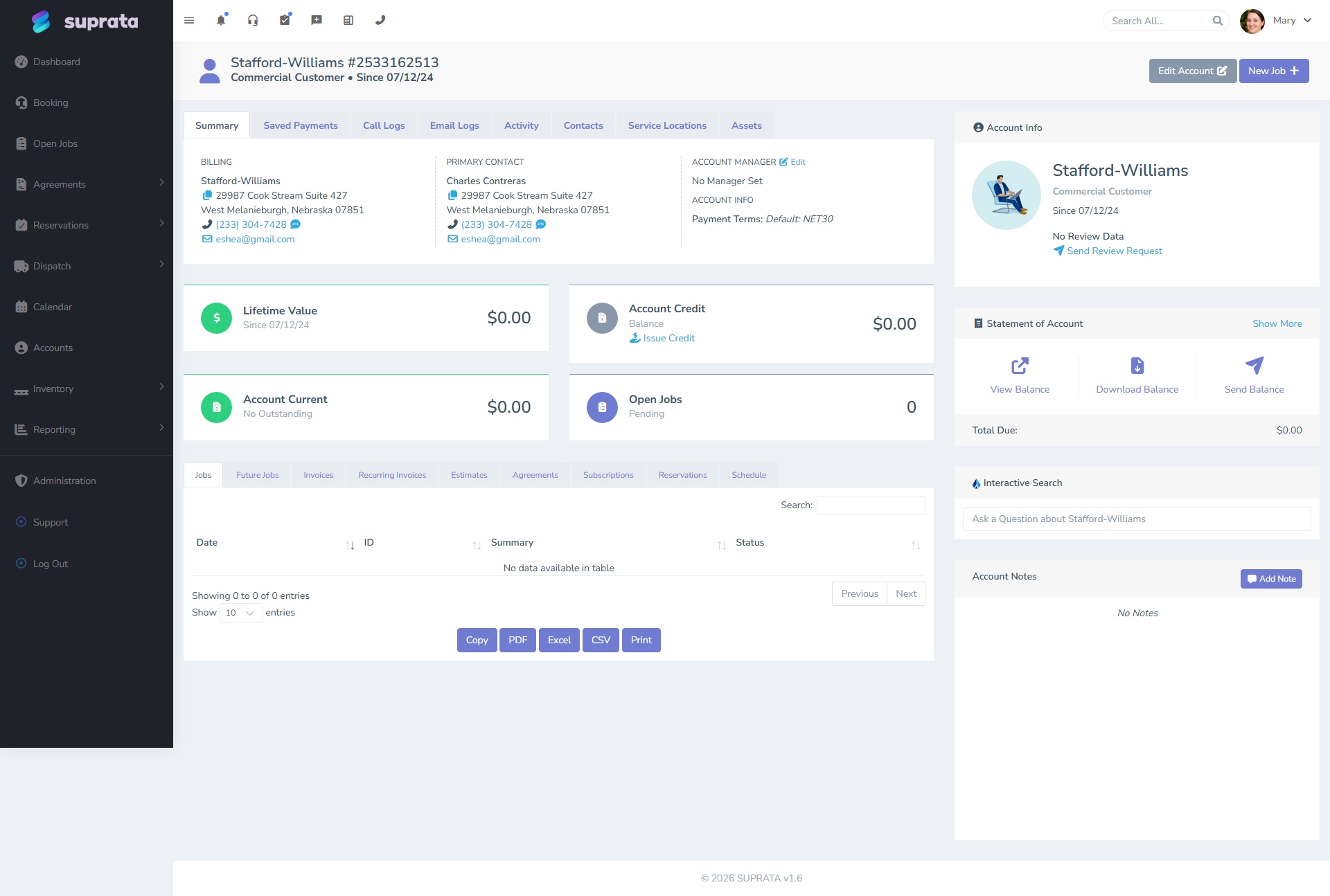
Capture:
- Organization Name. The name they trade as. This is what shows on invoices and in your Account list. Use the DBA if they go by a DBA — use the legal name only if the customer has explicitly told you to bill that way.
- Billing address. Where invoices go physically. May or may not be where service happens. Capture as labeled.
- Service address(es). Where your tech actually works. May be the same as billing, or different. May be multiple — a property manager has dozens.
- Main phone. The receptionist line, the office line — whatever the customer says is the primary number for the organization. Specific Contacts will have their own direct numbers.
- Main email. Same idea — the general inbox. Each Contact has their own.
Don't try to capture everything in the first three minutes. Get the Account skeleton up; you'll add Contacts and refine over the rest of the call.
Step 3 — Capture the multi-Contact pattern
This is the part that most differentiates commercial intake. You'll add three or four Contacts in this single call.
The canonical four:
- Decision-maker. The owner, the operations manager, the person who said "yes" to hiring you. Their job is strategic; you may rarely talk to them after onboarding. But they're the relationship anchor — the person whose name goes on the agreement, who you talk to when things escalate.
- Accounts Payable. The person who pays your bills. They want invoices sent to their email, not the decision-maker's. They want statements at month-end. They'll call you with billing questions. You will email them more than anyone else.
- Site contact. The person on the ground at the customer's location. Often a facility manager, a maintenance lead, a head of operations. Your tech will meet them. They know which closet is the electrical panel, what time deliveries arrive, where the parking is. They are not on the phone right now (the decision-maker probably is) but you should ask for their info before you hang up.
- Optional: technical contact. For some commercial customers, especially in IT or specialized service, there's a technical person separate from operations. Their input matters on scope discussions.
For each Contact, capture:
- First and last name.
- Title or role ("Owner", "Office Manager", "Head of Maintenance"). The role is what you'll use to know who to contact for what.
- Direct phone (mobile or extension).
- Direct email.
- Tags or notes that describe their role ("Receives Invoices", "Site Contact for HVAC", "Decision Maker — agreement renewals").
The decision-maker is usually marked the primary Contact on the Account — that's whose name shows up on Account-level lists. But the AP contact is who actually receives invoices, and your email rules should send invoices to them. See The anatomy of an Account vs. a Contact.
Step 4 — Set terms and tax category
Two decisions that have larger implications for commercial customers:
- Terms. Default to Net 30 for commercial. Some larger customers will demand Net 45 or Net 60. Smaller commercial customers might agree to Net 15. Whatever you negotiate, set the Account's default terms to match — every invoice this customer ever gets will inherit it.
- Tax category. Many commercial customers are tax-exempt — nonprofits, government, certain reseller arrangements. If they are, get the resale or exemption certificate documented (upload to the Account if possible) and set the right tax category at Account creation. Don't forget to confirm: "are you tax exempt? If yes, can you send me your certificate?" Don't trust the caller's casual claim of exemption without paperwork. See Handling tax-exempt customers.
Step 5 — Decide on a service agreement
Many commercial relationships start with — or quickly evolve into — a service agreement. A maintenance contract that covers a fixed scope at a fixed price on a defined cadence. The classic example is quarterly HVAC tune-ups for an office building: four visits a year, $X per quarter, predictable on both sides.
If the customer's call is "I want to set up regular service" rather than "I have one immediate problem," the agreement conversation belongs in the onboarding call. Set up the agreement; the recurring invoices and recurring jobs flow from it. See Creating a service agreement and Subscriptions vs. agreements vs. recurring invoices.
If the call is "I need someone out today for an emergency," skip the agreement for now — get them through the immediate work, follow up afterward to discuss ongoing service if it makes sense.
Step 6 — QuickBooks customer mapping (if you sync)
If you sync to QuickBooks, the new commercial Account needs a corresponding QB Customer. There are two patterns:
- Auto-create on first sync. When the first invoice closes for this customer, the QB sync creates the matching QB Customer automatically using the Account name. This is the default and works fine for most cases.
- Manual map to an existing QB Customer. If you already have this customer set up in QuickBooks (e.g., they were a paper-bookkeeping customer for years before you set up Suprata), you'll want to map the new Suprata Account to the existing QB Customer rather than create a duplicate. Do this on the Account's QB section before any invoice closes.
A duplicate QB Customer for a real customer is a pain to resolve later. Take the extra minute now to map correctly. See QuickBooks first sync walkthrough and QuickBooks prerequisites.
Step 7 — Schedule the first job (or first agreement service)
Same as residential — create the job, schedule the appointment, capture the description and access notes. Two commercial-specific notes:
- Service hours matter more. Commercial customers often have hours of operation that constrain when you can be on-site. "Anytime during business hours, 8 to 5" is fine to capture but specific is better — "before 9 AM is best so the lobby's quiet" or "after 4 PM after the kitchen closes."
- Site contact, not the decision-maker, is who the tech will meet. Confirm the site contact's name and direct number on the appointment, and put it in the notes for your tech.
Step 8 — Send the confirmation, and the agreement (if applicable)
The appointment confirmation goes to the AP/decision-maker by default. Verify it landed. If you set up an agreement during the call, send the agreement document for signature too — many shops use email-with-link or a digital sig flow for this.
Tell the customer what to expect, in commercial-appropriate language: "Invoices come from billing@yourcompany.com — please make sure that's whitelisted in your inbox. We send statements at month-end. The tech will call your site contact 30 minutes before arrival."
Step 9 — Document the relationship
Last, before you hang up: write a free-form note on the Account capturing anything that didn't fit in a structured field. "Decided to start with one service call before signing an annual agreement; revisit in 60 days." "Pays via ACH only — no credit cards." "Prefers Mary Bakerton on email; CC Tom on invoices." Future-you, or future-someone-else who picks up the relationship, will thank you for the context.
See Account notes and when to use each type.
A worked example
Phone rings. The caller is Sarah Bakerton, owner of ACME Bakery, three locations, wants quarterly HVAC service across all three.
- Search. "ACME" — no match. "Bakerton" — no match. Confirm new.
- Account. Commercial. Org name: ACME Bakery. Main billing address: 123 Main St (the headquarters). Default terms: Net 30. Tax: standard.
- Service locations. Add three: HQ at 123 Main, Westside at 456 Oak, Eastside at 789 Pine. Each will eventually have its own job history.
- Contacts. Add four:
- Sarah Bakerton, Owner, sarah@acmebakery.com, (555) 100-2000. Primary.
- Tom Smith, Accounts Payable, ap@acmebakery.com, (555) 100-2001. Tag: "Receives Invoices."
- Jim Lopez, Facilities Manager, jim@acmebakery.com, (555) 100-2002. Tag: "Site Contact." Add to all three locations.
- Optional: Maria, the bookkeeper at the AP firm, if Tom uses an external bookkeeper. CC on invoices.
- Agreement. Quarterly HVAC service across all three locations, $X per quarter, year-long agreement. Schedule the first set of visits.
- QB mapping. Sarah confirms ACME Bakery already exists in her QuickBooks (she's been doing the books on QB for years). Map the Suprata Account to the existing QB Customer.
- First job. Create the first quarterly visit at HQ for next Tuesday morning. Site contact: Jim. Notes: "First visit under new agreement; capture full equipment inventory."
- Confirmations sent. AP gets the schedule email; Sarah gets the agreement for signature; Jim gets a heads-up about the appointment.
- Note. "New agreement starts this quarter. Sarah is decision-maker; Tom handles AP; Jim is on-site. Maria CC'd on invoices per Tom's request. Agreement renews annually in [month] — flag 60 days out."
Twenty-five minutes total. Set up correctly, the next four quarters of work happen on autopilot.
What can go wrong
- Treating it like a residential intake. One Contact, Due on Receipt terms, no agreement, no AP separation. Within three months you're sending invoices to the owner's personal email and wondering why nobody's paying.
- Skipping the AP contact. "I'll just send invoices to the main email." That email is monitored by the decision-maker, who treats it like marketing and ignores it. Three months later your A/R is full of customer balances that are technically not their fault.
- Setting Due on Receipt because it's the default. Commercial customers operate on AP cycles. Net 30 is normal. Net 30 means "we expect to be paid in about 30 days," not "we will fire the customer if they're 31 days late." Setting Due on Receipt makes every invoice "past due" the day after it's sent and trains your team to ignore the past-due flags.
- Missing the site contact. Tech shows up, talks to a receptionist who has no idea you were coming, can't get to the equipment closet, leaves without doing the work. The site contact is the difference between a job done and a wasted dispatch.
- Skipping the QB mapping conversation. Then auto-sync creates a duplicate QB Customer next month and you spend an hour cleaning it up.
- Not documenting the agreement renewal date. Annual agreements need a 60-day-out reminder for the renewal conversation. If you don't note it now, you'll miss it. Use a tag or a note with a date.
- Capturing only the decision-maker's preferences. Tom in AP cares about invoice format; Jim on site cares about appointment timing; Sarah cares about pricing. They have different preferences. Capture them per Contact, not as a single Account-level "preferences" blob.