Credits vs. Refunds vs. Voids
Customer says "you overcharged me." Or you billed them and the work was cancelled. Or the deposit you took on a quote needs to come back. There are three different ways to handle this in Suprata, and they're not interchangeable.
- A credit is balance applied to a future invoice — you don't actually return any money.
- A refund is funds returned to the customer's payment method — actual money moving out.
- A void is cancelling an invoice that was never paid — no money moved, no refund needed.
Picking the wrong one creates accounting reconciliation problems, tax filing oddities, and (worst case) customer disputes that escalate to the card brand. This article spells out which fits which situation.
When you'd use each
Use a void when
- The invoice was never paid.
- The work was cancelled before it happened (or shortly after, before payment).
- You sent an invoice with the wrong amount and want to start over.
- You created a duplicate invoice by mistake.
A void is the cleanest option when no money moved. It nullifies the invoice without creating a credit or a refund — there's nothing to refund because nothing was paid.
Voiding is reversible internally (the invoice still exists in history, marked voided) but it's a hard signal: the invoice is dead. If the customer later wants the work, you create a new invoice.
Use a credit when
- The customer paid you, but the work didn't happen (or was reduced), and they have more work coming with you.
- You overcharged on something but the customer's happy to apply the difference to future invoices.
- A customer is on a deposit-based plan and you need to apply some of that deposit to a specific invoice.
- You issued a customer goodwill credit ("we screwed up, here's $50 off your next service").
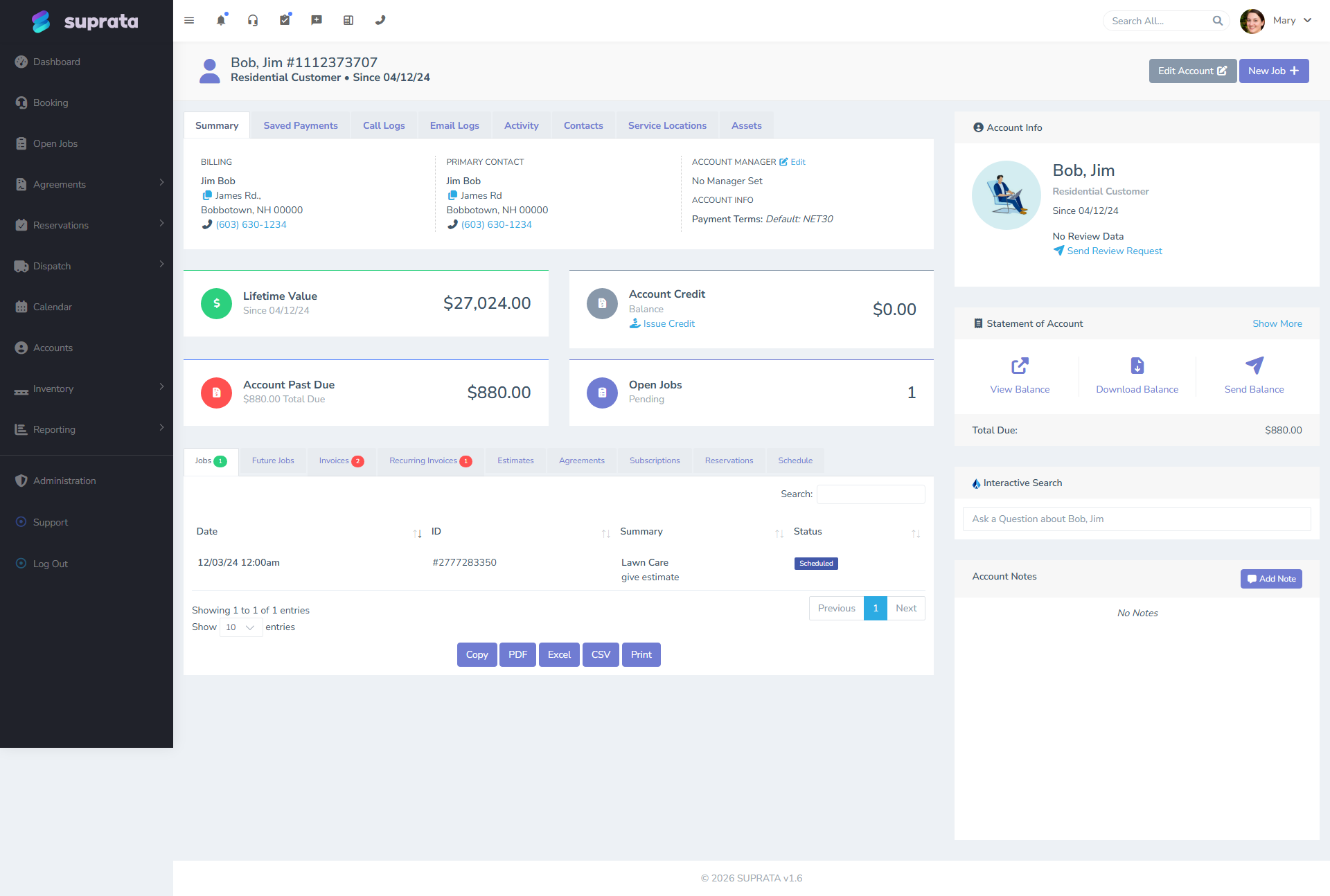
Credits live on the account as an unapplied balance until you (or the system) apply them to an invoice. They're listed in the customer's account history. They don't move money to the customer; they move money around inside the system.
Credits work best when the customer relationship is ongoing. For a one-time customer who paid and then cancelled, a credit they'll never use is functionally a refund you didn't issue.
Use a refund when
- The customer paid you and isn't getting anything in return.
- The work was done but the customer is genuinely entitled to money back (warranty, dispute resolution).
- The customer specifically asked for a refund (and a credit isn't an acceptable substitute).
- You charged the wrong card, or charged twice.
Refunds actually move money — back to the card, back to the bank account, back to the customer's hand. They're irreversible; you can't unrefund.
If the original payment was on a credit card, the refund goes back to that card via your processor (Stripe, USIO, etc.). Card refunds usually take 3-7 business days to appear on the customer's statement, so set expectations.
The decision tree
Was the invoice paid?
   ├── No → VOID
   │
   └── Yes
        │
        ├── Will the customer be back? Or do they want store credit?
        │     → CREDIT (apply to future invoices)
        │
        └── Customer wants money back to their card / account
              → REFUND
If you're not sure between credit and refund, ask the customer. Most prefer a refund unless they're already a regular customer with more work in the pipeline.
What each one actually does
Voids
When you void an invoice:
- The invoice is marked voided. It stays in history so you can find it later.
- It no longer counts toward A/R or revenue.
- If QuickBooks is connected, the invoice is voided in QB too.
You can void at any point before payment. Once even a partial payment is applied, you can't void — you'd need to refund the payment first, then void.
Credits
When you create a credit:
- A credit balance is added to the customer's account.
- That credit can be applied to one or more invoices when you're ready.
- Applied credits show on the invoice as a credit line that reduces the amount due.
- In QuickBooks, credits show up as customer credit memos.
The customer's account balance reflects the unapplied credit. You can apply it to a specific invoice on request, or it can apply automatically the next time a new invoice is generated (depending on your settings).
Refunds
When you process a refund:
- A refund is recorded against the original payment.
- Your processor (Stripe / USIO) sends the money back to the customer.
- The invoice's paid amount is reduced by the refund.
- In QuickBooks, the refund shows up as a refund receipt.
Partial refunds are allowed — refund $20 of a $100 payment, and the invoice shows $80 paid. Be careful: partial refunds make the math on closed books fiddly.
Tax implications
This is the part most people get wrong.
Voids
A voided invoice never happened, from a tax perspective. If the void is in the same period as the original invoice, your sales tax liability simply doesn't include it. If the void is in a later period (the invoice was open across a month-end), your tax-collected total for the original month was wrong, and you need a tax-period adjustment in your filing — your accountant should know to handle this.
Credits
A credit doesn't change the original invoice's tax. The original invoice was paid (or partially paid); tax was collected. The credit is a separate transaction. When the credit is applied to a new invoice, that new invoice's tax is calculated normally — the credit reduces the amount due, not the taxable amount.
Refunds
This is the gnarly one. A refund of an invoice that already had tax collected reduces tax-collected for the period the refund occurred in. So if you collect $10 of tax in March and refund the underlying invoice in April, your March tax filing was correct (you collected $10), and your April filing reflects -$10.
Most tax authorities accept this naturally — refunds reduce the period's net taxable sales. But if you're refunding a high volume of stuff, expect questions.
For partial refunds, the tax portion of the refund is computed proportionally. If the invoice was $100 + $7 tax = $107 and you refund $50, you're refunding ($50 / $100) × $7 = $3.50 of the tax. Suprata handles this for you, but check the math on the refund detail.
QuickBooks sync differences
If you're connected to QuickBooks, all three of these flow through the sync, but each as a different kind of QB transaction:
- Void → QB invoice gets voided. Net change to revenue and A/R is zero (it's like the invoice never existed for accounting purposes).
- Credit → QB Credit Memo. Sits on the customer in QB until applied. Reduces revenue if applied to a previously-paid invoice; otherwise it's a future-applicable balance.
- Refund → QB Refund Receipt. Reduces revenue and reduces cash (or whatever account the refund came from).
The most common QB sync error is from refunding a payment whose original invoice already synced and was reconciled. The refund tries to flow through, but the QB invoice is locked. You'll see a sync error; usually it requires manual cleanup in QB. Don't refund reconciled payments without your accountant in the loop.
Real-world examples
Customer paid $300 for a service call, you arrived, the issue resolved itself before you started, and you're not charging anything. → Refund the $300. The service didn't happen; they shouldn't keep paying for it.
Customer paid $300 for a service call, the actual cost was $200, and they're a regular customer. → Apply a $100 credit. Either to this invoice (reducing it to $200) or as a credit on the account they can use next time.
You created an invoice for the wrong customer. → Void it. Create the correct invoice on the right customer.
Customer prepaid $500 for an annual maintenance plan, then cancelled the plan after one of two visits. They're owed $250. → Refund $250. (Unless they're staying on as a customer in a different way and want it as credit.)
Customer disputed a $1,000 invoice, you negotiated to $700. → Void the original invoice and issue a new one for $700. (Or, if it's already paid, refund $300.)
You billed a customer $50 for a part you ended up not using. → Adjust the invoice if it's not yet closed. If closed, issue a $50 credit applied to the customer's account.
Common mistakes
Issuing a credit when the customer asked for a refund. They get angry, they may dispute the charge with their card company, and you've now turned a $200 refund into a $200 refund + a $25 chargeback fee + a damaged processor relationship. When in doubt, refund.
Voiding a paid invoice. Most systems block this; Suprata will too. The right move is to refund the payment first, then void.
Refunding the wrong amount. Especially partial refunds where you forgot tax. Always check the refund preview shows the right total before confirming.
Issuing manual refunds outside the system ("I'll just Venmo them the $200"). Now your records say they paid you, the customer's records say you paid them back, and at year-end the books don't reconcile. Always process refunds through Suprata so the records match.
Crediting the wrong account. Especially in a property-management setup with multiple accounts per customer. Double-check the account selector before applying.
Refunding through Stripe directly instead of through Suprata. Logging into Stripe and refunding from there sends the money back, but Suprata doesn't know it happened — the invoice still shows paid. Always do the refund inside Suprata so the records stay aligned.
Unapplying a credit that's already on a closed invoice. This is rarely the right answer — it un-pays an invoice that was reconciled. Talk to your accountant first.