Refunds and partial refunds
Refunding a payment looks like a one-click action and mechanically it usually is — but what happens next on the invoice, in QuickBooks, and with your processor fees varies depending on whether you refund all or part, and whether the customer paid by card or ACH. This article covers the typical refund flow, the partial-refund variants, and the downstream effects that surprise people.
If you're trying to decide whether a refund or a credit is the right tool, read Customer credits and refunds first. This article assumes you've decided to refund and need the click-by-click.
When to refund vs. credit (the quick version)
- Refund — actual money goes back to the customer's card or bank. Use when the customer wants their money back and isn't planning to come back, or when the credit would be too large to consume.
- Credit — balance held against the customer's account, applied to a future invoice. Use when the relationship continues.
Both are valid; they're just different tools. See the credits article for the full strategic discussion.
Full refund — typical flow
- Open the invoice that was paid.
- Find the payment record (the row showing the original charge — date, amount, processor, last 4 digits or bank reference).
- Initiate the refund. Confirm the amount (defaulting to the full charge).
- Optionally enter a reason — "damaged part returned", "service issue", "duplicate charge". Always good to record.
- Submit. The processor (Stripe, USIO) reverses the charge.
- The invoice's payment row is updated to show the refund. If this was the only payment on the invoice, the invoice's balance returns to the original amount due (i.e., back to "unpaid").
Subject to processor settlement, money returns to the customer's card in 3–10 business days for cards, or to their bank account in 3–7 business days for ACH. The customer's statement will show a credit transaction with a reference matching the original charge.
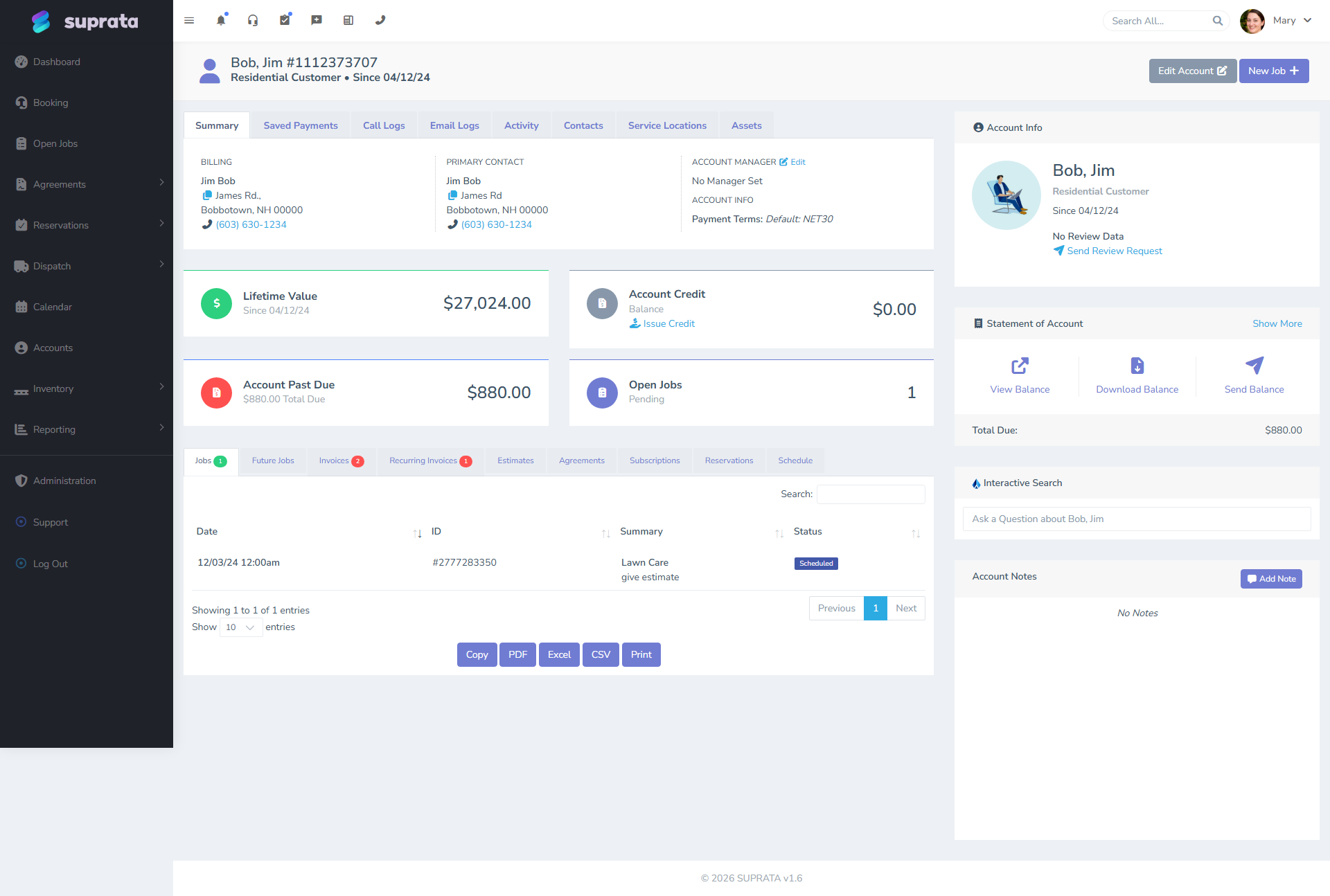
You'll see refunds reflected in your account-level payment history:
Partial refund — when and how
Partial refunds are common when you're keeping some of the work and refunding only the disputed portion. Typical scenarios:
- The customer is happy with most of the job but you over-billed on one line.
- A part of the service was incomplete or below standard, and you're refunding the proportional amount.
- A deposit was paid and the engagement was partially used; you're returning the unused portion.
- A duplicate charge — refund the duplicate amount, keep the legitimate amount.
The flow is the same as a full refund, but you enter a partial amount on the refund form instead of the full charge. The processor reverses only that amount. The original payment record stays attached to the invoice but its applied amount drops by the refunded portion. The invoice's balance goes back up by the refund amount.
A worked example:
- Original invoice: $500
- Customer paid in full: $500
- You refund $150 (one over-billed line)
- After refund: invoice still shows $500 owed, payment shows $350 applied (out of $500 original), and a $150 refund row references the original payment.
- The invoice is now $150 underpaid. If you don't expect more payment, either issue a credit memo or apply an adjustment to bring the invoice back to balanced.
That last step matters. After a partial refund, the invoice's accounting math may show "still owed". Decide whether the customer actually owes that remainder, and resolve by adjusting the invoice (reduce the line item to the corrected price), issuing a credit, or recording a payment adjustment. Don't leave invoices in a "looks unpaid but really isn't" limbo — they'll show up on aging reports forever.
Multiple refunds against one payment
You can refund a single payment in multiple installments — say, $50 today and $50 next week — as long as the cumulative refund doesn't exceed the original payment. Stripe and USIO both support this.
Operationally it's rare: most partial refunds are one-shot. But if a dispute resolution stretches over time and you're returning money in pieces, it's possible.
Refunding ACH payments
ACH refunds work but with longer timelines:
- The original ACH must have settled (3–5 business days from initiation). You can't refund an ACH that's still in flight.
- The refund itself takes 3–7 business days to land in the customer's bank account.
- Some processors require ACH refunds within a tighter window than card refunds (e.g., 60 days).
If the customer paid by ACH and the original charge hasn't settled yet, you have to either wait for settlement and then refund, or reach out to the processor's support to cancel the in-flight charge (rare, requires processor intervention).
Refunds and processor fees
A subtle point that bites people:
- Stripe's processing fee on the original charge is not refunded when you refund the customer (as of standard Stripe pricing). If you charged the customer $100 and Stripe took $3.20 in fees, your bank received $96.80. When you refund $100, Stripe pulls $100 back from your account — not $96.80. You're net out $3.20 on the round trip.
- USIO and other processors have varying policies. Some return processing fees on refund, some don't.
The implication: a refund costs you the processing fee, not just the customer's money. For high-volume merchants this is a meaningful cost line; for occasional refunds it's a rounding error. Don't be surprised when your bank balance after a $100 charge + $100 refund is $3.20 lower than it started, not equal.
For partial refunds, processor fees are generally still calculated on the original full charge — refunding $50 of a $100 charge costs you the same fee as refunding the whole $100. Plan accordingly.
What syncs to QuickBooks
If QuickBooks is connected, refunds flow over as Refund Receipts in QB (or as reversed payments, depending on how you've set up the sync). The chain is:
- Original Suprata payment → payment record in QB.
- Refund issued in Suprata → a Refund Receipt is created in QB referencing the original.
- The QB invoice's paid amount is reduced; the customer's account in QB reflects the refund.
Updates to QuickBooks run on a delay — usually within an hour, sometimes longer. Check the QB sync log if you don't see the refund in QB after a couple of hours.
For partial refunds, QB receives a refund receipt for the partial amount. The original payment is not deleted in QB; the refund is recorded as a separate event. This is correct behavior — accounting trails should show what happened, not just the net.
What does NOT happen automatically
Three things you might expect but the system doesn't do for you:
- Send the customer a refund-confirmation email. Some processors do send their own confirmation; Suprata may or may not email the customer about the refund depending on your email settings. If it matters to you, send a personal email confirming the refund and when they should expect to see it. Always more reassuring to the customer than a processor-generated form email.
- Adjust the invoice's line items. A refund doesn't edit the invoice itself — the line items still show what was billed. If the refund is because a line was over-billed, you may want to also reduce that line so future statements and reports reflect what the customer actually owed.
- Reverse a closed-and-synced QB invoice. If you refund a payment on an already-closed invoice, the invoice in QB doesn't automatically reopen. The refund is recorded as a separate event. Decide whether you want to reopen the invoice (generally don't) or leave the refund as a standalone reversal.
Common mistakes
- Refunding when a credit was the right tool. If the customer is staying, a credit is operationally simpler — no money movement, no processor fees on the refund, no settlement delay. See Customer credits and refunds.
- Refunding against the wrong payment. Invoices with multiple payments (a deposit and a final payment, say) require you to choose which payment to refund against. The refund must be against an actual payment that received funds; you can't refund "in the abstract".
- Forgetting the invoice is now unpaid. Partial refunds put the invoice into a "balance owed" state. Decide what to do with that balance — adjust line items down, issue a credit, write off — don't leave it floating.
- Refunding outside the processor's window. Most processors have a 90-180 day refund window. Past that, you have to issue payment a different way (a manual check, a credit on the customer's account, a separate ACH push). The system may not let you refund through Stripe at all past the window.
- Not communicating the refund timeline to the customer. "I refunded you" sounds like the money is back; it isn't, for several days. Tell them: "Refund issued today; you'll see it on your card in 3-5 business days; if you don't, let us know."
- Treating a chargeback as something you should refund first. If a customer has filed a dispute, refunding mid-dispute can leave both events in flight and make a mess. See Handling a customer dispute — usually you respond to the dispute, you don't pre-refund.
- Not noting the reason on the refund. "Refund $150" with no description is the kind of audit-trail entry that becomes confusing six months later. Always document the reason in the refund's notes or the invoice's notes.