Closing, reversing, and reactivating invoices
An invoice has more states than people realize, and choosing the wrong action leaves audit trails and QuickBooks in a state that takes work to clean up. This article walks through the lifecycle, the right action for each scenario, and the rare cases where a closed invoice gets reactivated.
What changed: the single "Void Invoice" action is now Reverse Invoice, and it resolves to one of two things — Cancel or Credit note — based on the invoice in front of you. You'll also be asked for a reason, and if money has been paid, what should happen to it. If you're used to the old behaviour, read The two ways to reverse before your next void.
The lifecycle
A Suprata invoice moves through these states, in roughly this order:
- Draft / Open — created, editable, not yet sent. Line items can be added or removed; totals can change.
- Sent — the customer has received it (by email, link, or print). Still editable, but every change should be deliberate because the customer has seen the original.
- Approved (estimates only) — the customer signed off; an estimate at this state is ready to convert to an invoice.
- Partially Paid — one or more payments have been applied but the balance is not zero.
- Paid — the balance hits zero through payments and/or applied credits.
- Closed — locked from edit. Final. Reportable as revenue.
- Reversed — undone, either by cancellation or by a credit note. Removed from revenue calculations.
A few states overlap or branch — an invoice can be Sent and Partially Paid at the same time. Closed is a one-way street under normal operations; reactivation is a deliberate admin action.
Closing vs. reversing — the operational difference
Both "end" an invoice, but they mean opposite things:
| Close | Reverse | |
|---|---|---|
| What it represents | The invoice is final and complete | The invoice is being undone |
| Effect on revenue | Counts as revenue | Removes from revenue |
| Tax effect | Counts toward tax-collected | Removes from tax-collected |
| Edit-ability | Locked, not editable | Locked, not editable |
| When to use | Job done, billed, paid, archived | Mistake, duplicate, cancelled work |
Close when the invoice did its job. The customer paid (or the balance was settled by credit), the work is done, and you want to lock the record so nobody edits it after the fact.
Reverse when the invoice shouldn't stand. You created a duplicate, billed for work that didn't happen, or the customer cancelled.
The two ways to reverse
Pick Reverse Invoice from the invoice's action menu and Suprata decides which of these applies. You don't choose — the accounting rules do, and the dialog tells you which one you're getting and why.
Cancel
Used when nothing has been paid and the invoice falls in an accounting period that's still open. The invoice is marked reversed and drops out of revenue. Nothing else is created.
This is the closest thing to the old "void", and it's what you'll get for the everyday cases: a duplicate, a wrong customer, a job cancelled before anything happened.
Credit note
Used when money has been paid against the invoice, or when the invoice is dated inside a closed accounting period.
Instead of editing the original, Suprata creates a second document — a credit note dated today, carrying the same lines with the amounts negated, linked back to the invoice it reverses. The original invoice stays exactly as your customer received it.
That's the part worth internalizing: a credit note doesn't change history, it adds to it. Your accountant will thank you. An invoice you issued in March stays a March invoice; the credit note that reverses it is a document dated the day you actually reversed it, so a closed and filed month never silently changes underneath you.
The credit note gets its own number, prefixed to mark it as a credit (CN- by default — an administrator can change the prefix in settings).
What happens to money already paid
This is a separate question from what happens to the document, and Suprata now asks it separately. Previously you had to refund a payment before you could clear the invoice at all, which made the most common request impossible to express.
When the invoice has payments on it, you'll be offered:
- Leave it applied — decide later. The credit note is issued and the money stays where it is. Use this when you don't yet know whether the customer wants a refund or will be re-billed.
- Give it back as account credit. The money stays with your business as a credit on the customer's account, available against their next invoice. This is what most customers actually want when work is rescheduled rather than cancelled outright.
- Refund it now. Sends the money straight back. You don't have to go anywhere else to do it.
"Refund it now" really does refund. Each payment goes back the way it was taken — a card payment to that card, cash out of the drawer — so an invoice paid partly by card and partly in cash is handled correctly without you having to choose. You'll be asked to confirm, because it happens immediately and cannot be undone.
If the refund is declined, nothing is reversed. The invoice stays exactly as it was, so you can try again or choose account credit instead. You will never end up with a reversed invoice and a customer still waiting for their money.
Reasons are now required
Every reversal needs a reason — a category (Billing error, Duplicate, Customer cancelled, Price correction, Service not rendered, Goodwill, Other) plus a note. Goodwill and Other require the note.
This used to be optional, which meant the audit trail recorded that an invoice was reversed but never why. An auditor who can see the reversal but not the reason will assume the worst. The reason now appears on the invoice history and on the customer's account timeline.
Administrators can edit the reason list to match how your business actually categorizes these.
Closed accounting periods
If your administrator has set a books-closed-through date, invoices dated on or before it can no longer be cancelled — only reversed with a credit note dated today.
This exists to stop a reversal quietly changing a month you've already reconciled and filed taxes on. If you get this message, nothing is wrong; take the credit note.
When to reverse
Reverse an invoice when:
- It was created in error (duplicate, wrong customer, wrong job).
- The work it represents was cancelled before any value was delivered.
- The line items are wrong in a way that re-issuing is cleaner than editing.
- The invoice was sent but the customer disputed it and you both agree it shouldn't stand.
A handful of common situations:
- Customer cancelled the job before any work happened. Reverse it. If a deposit was paid, decide whether it becomes account credit or gets refunded.
- You generated a duplicate by mistake. Reverse the duplicate; keep the real one.
- You realize the invoice is wrong and you've already sent it. Options:
- Edit it if it's still Open and not Closed/Paid. Re-send with a brief apology.
- Issue a credit for the over-billed amount if the customer has already paid (see Customer credits and refunds).
- Reverse and re-issue if the invoice is structurally wrong.
When NOT to reverse
- The work happened but the customer is refusing to pay. That's a collections issue. The invoice is real; track it as overdue and follow your collections process. Reversing to "give up" misstates revenue.
- You over-billed and the customer paid the inflated amount. A partial credit or partial refund is more accurate than reversing the whole invoice.
- A partial scope-change happened on a job. Edit the still-open invoice, or issue a credit for the difference.
Stock and cost
Closing an invoice consumes stock and cost layers for the items on it. Reversing now gives them back — inventory and cost of goods return to where they were before the invoice was closed. If you previously noticed stock counts drifting after voiding invoices, that's the cause and it's fixed.
QuickBooks implications
If QuickBooks is connected, closing and reversing push different events:
- Close → invoice is finalized in QuickBooks, contributes to revenue and tax reports.
- Reverse → the invoice is voided or removed in QuickBooks, and drops out of revenue and tax reports.
This is the source of most "the QuickBooks number doesn't match the Suprata number" issues. Run the QuickBooks sync report periodically to catch state mismatches early.
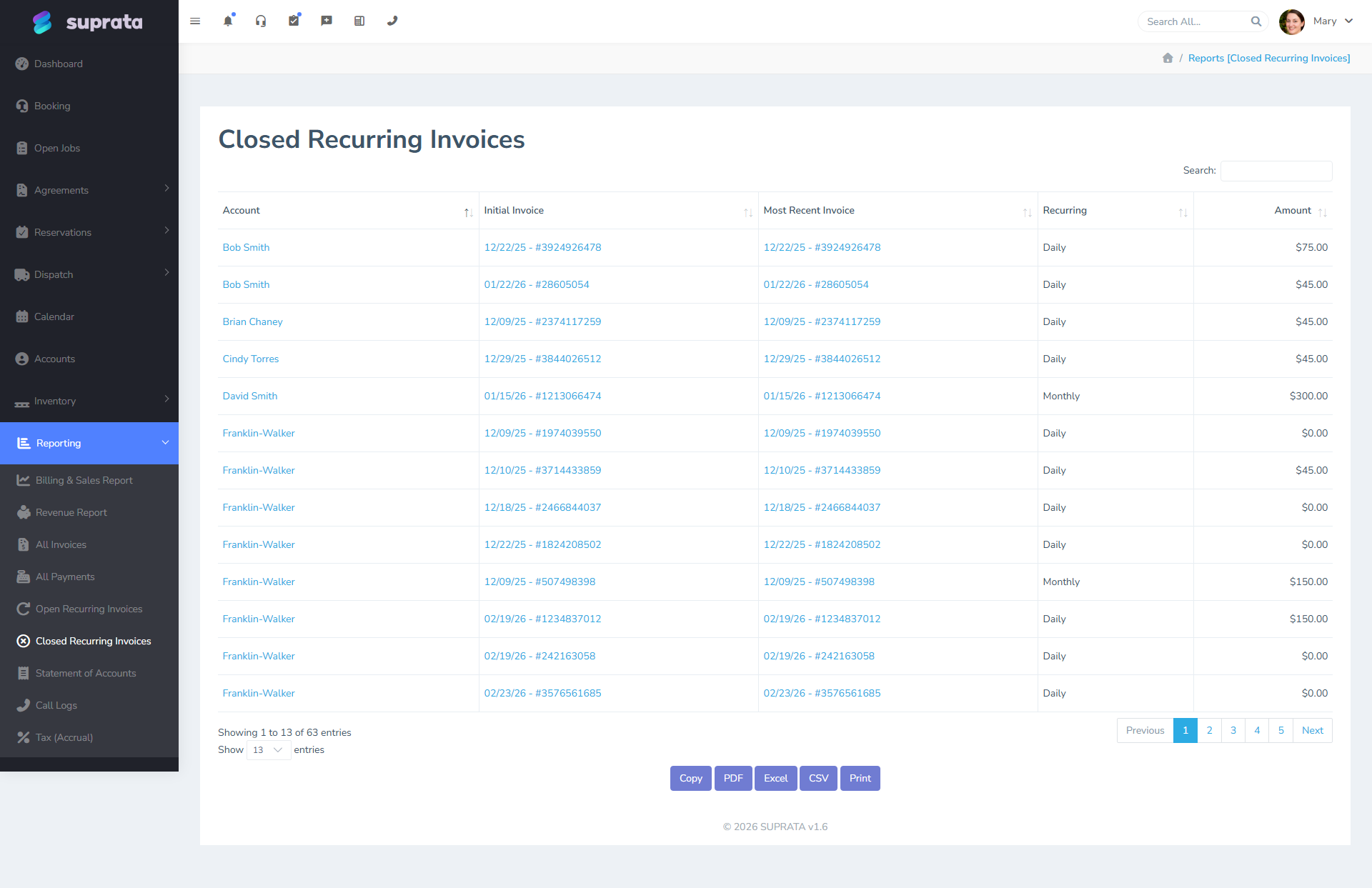
The cancelled/reversed invoice report shows these in one place — useful for audit and reconciliation:
Electronic invoicing (Dominican Republic)
If your business files electronic invoices with the DGII, reversal has an extra consequence: once a document has been accepted by the tax authority it cannot be cancelled — a credit note is the only lawful reversal, and Suprata will file the corresponding E34 automatically. Reversing an invoice the DGII hasn't accepted yet simply withdraws it and declares the unused number.
See Electronic invoicing with the DGII.
Reactivating a closed invoice
This is rare. Closed is supposed to mean final. But sometimes:
- You closed the invoice prematurely and need to add a line that should have been on the original.
- A payment was applied to the wrong invoice and you need to detach it.
If you have admin permissions and the system surfaces a Re-Open action, use it deliberately:
- Reopen the invoice.
- Make the change.
- Close it again.
- Verify QuickBooks synced the corrected version, not just the original close.
Better default: don't reactivate. If a closed invoice is wrong, issue a credit note or a follow-on adjustment invoice.
Reactivating reversed invoices
Reversed invoices cannot be un-reversed; the action is intended to be permanent. If you reversed in error, create a fresh invoice with the same line items. Yes, the invoice number will be different. It's also the cleanest audit trail.
A clean lifecycle in practice
For 95% of invoices the path is: create as draft → send → customer pays → close. No reversals, no reactivations, no credit notes. The complications above only enter the picture when something goes wrong.
Common mistakes
- Expecting to be asked whether you want a "void". You aren't. Suprata determines cancel-vs-credit-note from the invoice's payments and its accounting period, then tells you which it's doing. If you were expecting a cancellation and got a credit note, there's a payment on the invoice or the period is closed.
- Refunding when the customer would rather have credit. "Convert it to account credit" keeps the money with your business and saves a card fee on both sides. Ask before refunding.
- Refunding twice. If you already refunded the payment on the Payments tab, the invoice will have nothing left owing and you'll get a Cancel, not a credit note — so you'll never be offered the refund option. If you are offered it, the money has not gone back yet.
- Closing invoices with non-zero balances. Creates "closed but unpaid" records that look like a collections issue forever. Resolve the balance before closing.
- Reversing to fix a small error. Editing while still Open is almost always cleaner.
- Reactivating routinely to make edits. Reactivation is an exception path, not a workflow.
- Forgetting that QuickBooks updates on a delay. A close flows to QuickBooks on the next sync, not instantly. If you close and immediately reverse to "undo", the two events may arrive out of order.
- Mixing up Approved (estimates) with Closed (invoices). An estimate doesn't get closed, it gets converted.