Recurring invoices
Recurring invoices automate the billing for any service that bills on a repeating schedule — monthly maintenance plans, quarterly retainers, annual software or licensing fees, weekly cleaning routes. Set up correctly, recurring invoicing means you stop forgetting to bill, customers stop calling to ask why their invoice is late, and your monthly recurring revenue is something you can actually report on.
This article covers how recurring schedules work in Suprata, the choice between per-customer and per-agreement schedules, and the operational gotchas around mid-cycle changes.
When you'd use this
- Maintenance plans. A flat monthly or quarterly fee for ongoing service (HVAC tune-ups twice a year, monthly pest control, weekly pool service).
- Retainers. A fixed monthly amount for an ongoing professional relationship, with work happening as needed against the retainer.
- Subscription products. Recurring software access, equipment rental, or any "you pay $X every month while you have it" arrangement.
- Recurring delivery routes. A customer on your weekly route who gets billed for that week's stop without you having to remember.
- Recurring late-fee or finance charges. Less common, but possible — automatic monthly charges on overdue balances.
If your business runs entirely on one-off jobs, you don't need recurring invoicing yet. The moment you add even a single maintenance plan or retainer arrangement, set it up properly — billing manually for one customer is annoying; billing manually for forty is a part-time job.
How recurring schedules work
A recurring invoice schedule is a setup record that says "bill this customer this amount on this cadence". Every time the cadence comes around, Suprata creates a real, separate invoice from the schedule's template. The schedule keeps going; each generated invoice is its own record you can edit, send, and reconcile like any other invoice.
Two important consequences:
- Editing the schedule does not edit invoices already issued. Bumping the rate on the schedule from $100/month to $120/month doesn't change last month's invoice. It only affects future cycles.
- Voiding one of the generated invoices does not stop the schedule. The schedule will run again next cycle and create another invoice. To stop billing, end or pause the schedule itself, not just void this month's invoice.
Each schedule has a "next bill date". When that date arrives, a new invoice is generated and the next bill date moves forward. If anything delays the run, the schedule catches up next time — invoices won't be silently skipped.
Two flavors: per-customer and per-agreement
Suprata has two patterns for recurring billing, and the right one depends on how your work is structured.
Per-customer recurring invoices
A standalone recurring schedule attached to a customer's account. Useful when the recurring billing is conceptually independent of any service-agreement contract — for example:
- A customer pays you $50/month for "general bookkeeping retainer" with no specific contract document.
- A customer is on a flat monthly fee that's not tied to a recurring job or asset.
Set this up by creating a recurring invoice template, attaching it to the account, and choosing the cadence (monthly, quarterly, annual). Each cycle, an invoice is generated against that customer.
Per-agreement recurring invoices
When you've created a Service Agreement, recurring billing for that agreement comes from the agreement's own schedule, not a standalone recurring invoice. The agreement handles the schedule of work (when service visits happen) and the schedule of billing (when invoices generate) together.
Use per-agreement when:
- The recurring billing represents ongoing service work (monthly pest control with actual visits).
- The customer has a contract document (e.g., HVAC service agreement) that the recurring billing belongs to.
- You need the recurring revenue to roll up to an agreement for renewal and reporting purposes.
The general rule: if there's a contract, bill from the agreement; if it's just a flat repeating fee with no associated contract, use a standalone recurring invoice.
Setting up a recurring schedule — the typical flow
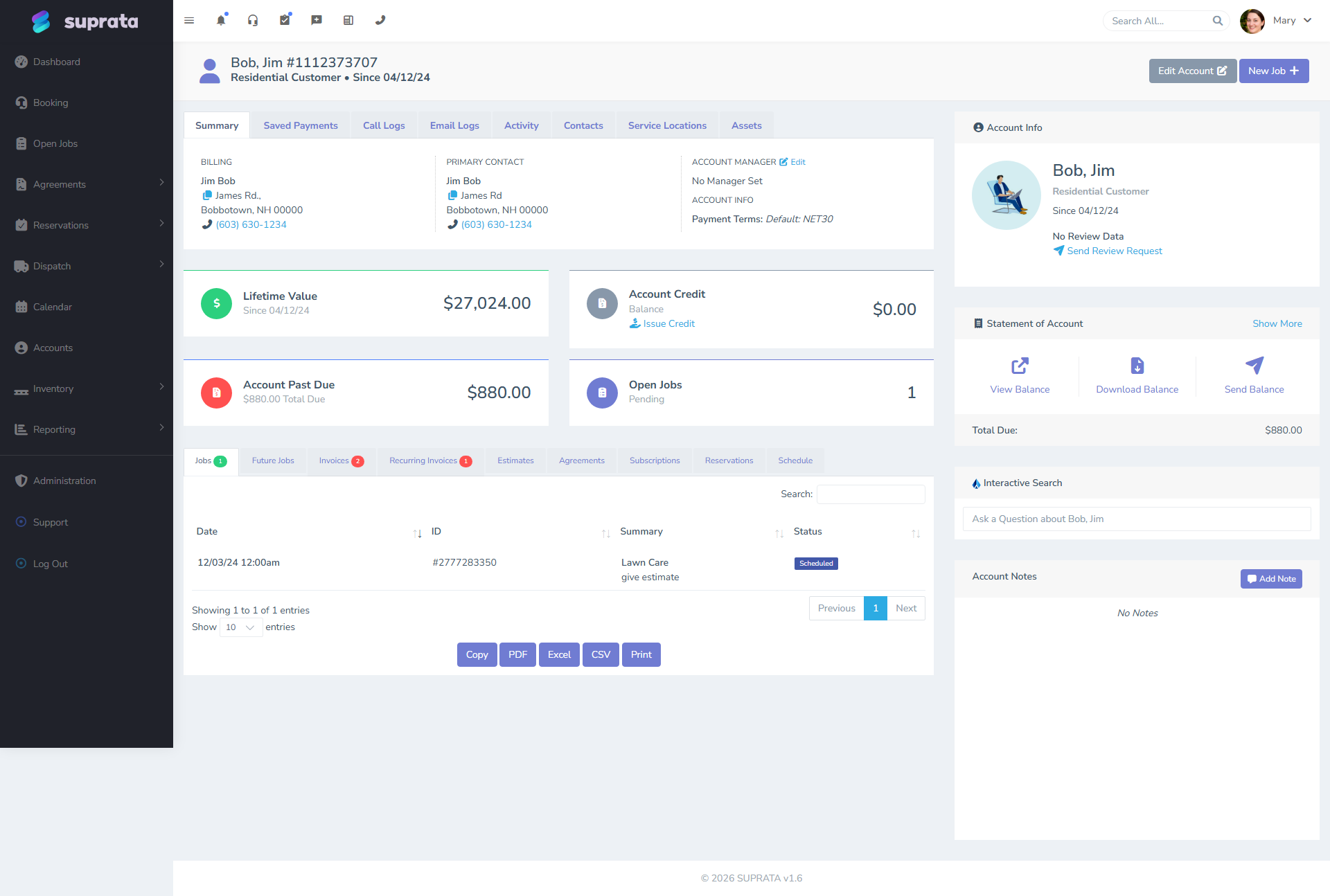
The Bob Jim sample account in your demo data has the customer-record structure recurring schedules attach to:
Whichever pattern you use, the steps are roughly:
1. Lock in the customer's tax setup first
If the customer is tax-exempt, set their default tax category to Exempt before creating the recurring schedule. The schedule captures the tax category at template time, so creating the schedule first and then changing the customer's tax later means you'll be re-tagging every generated child invoice. See Handling tax-exempt customers.
2. Build the line items as a template
The schedule has line items just like a regular invoice — items pulled from the pricelist with quantities and prices. These are the template lines that get copied into every generated child invoice.
Use real pricelist items rather than ad-hoc descriptions. When the price changes (you raise rates), you can update the pricelist item once and decide whether to push the change to existing schedules, instead of editing forty individual schedule templates. See Adding items to the price list.
3. Set the cadence and the start date
Cadence options are typically: weekly, biweekly, monthly, quarterly, semi-annually, annually. Pick the one your customer agreed to.
The start date is when the first child invoice generates. If you set it to today, an invoice generates today (or on the next scheduled run). If you set it to the first of next month, the first invoice waits until then. Don't set start dates in the past unless you intentionally want to back-bill — the system may interpret that as "catch up immediately" and generate multiple invoices at once.
4. Set the end condition
Three common patterns:
- No end date. Bills forever until you manually stop the schedule. Common for ongoing maintenance plans.
- End on date. Bills until a specific date and stops automatically. Common for fixed-term contracts (a 12-month engagement that ends in March).
- End after N invoices. Bills N times and stops. Common for installment plans (4 quarterly invoices for an annual fee paid in pieces).
For service agreements with renewal dates, the end condition usually mirrors the agreement's renewal — let it expire so a renewal forces a fresh look.
5. Choose what happens to each generated child
Two key behaviors to verify:
- Is the child invoice auto-sent or held in draft? Auto-send is convenient but means a misconfigured schedule can email forty wrong invoices before you notice. Draft-and-review is safer for the first few cycles; switch to auto-send once you've watched it work.
- Should autopay run on the new invoice? If the customer has a saved payment method, the schedule can charge it automatically when each invoice is created. Lovely when it works; a real headache when a card declines and you don't notice.
A safe pattern for the first month: generate as draft, no autopay. Verify each invoice looks right, then send manually. After two or three good cycles, switch to auto-send, autopay attempts.
6. Verify the next bill date
Save the schedule and look at the next-bill-date field. Does it match what you intended? If not, fix the start date — easier to fix the schedule before it generates than to clean up a bad invoice afterward.
Watching recurring activity
The recurring-invoices report (in the reports area) shows your active schedules, when each one will next bill, and what each one is generating per cycle. Treat this as your monthly recurring revenue (MRR) view.
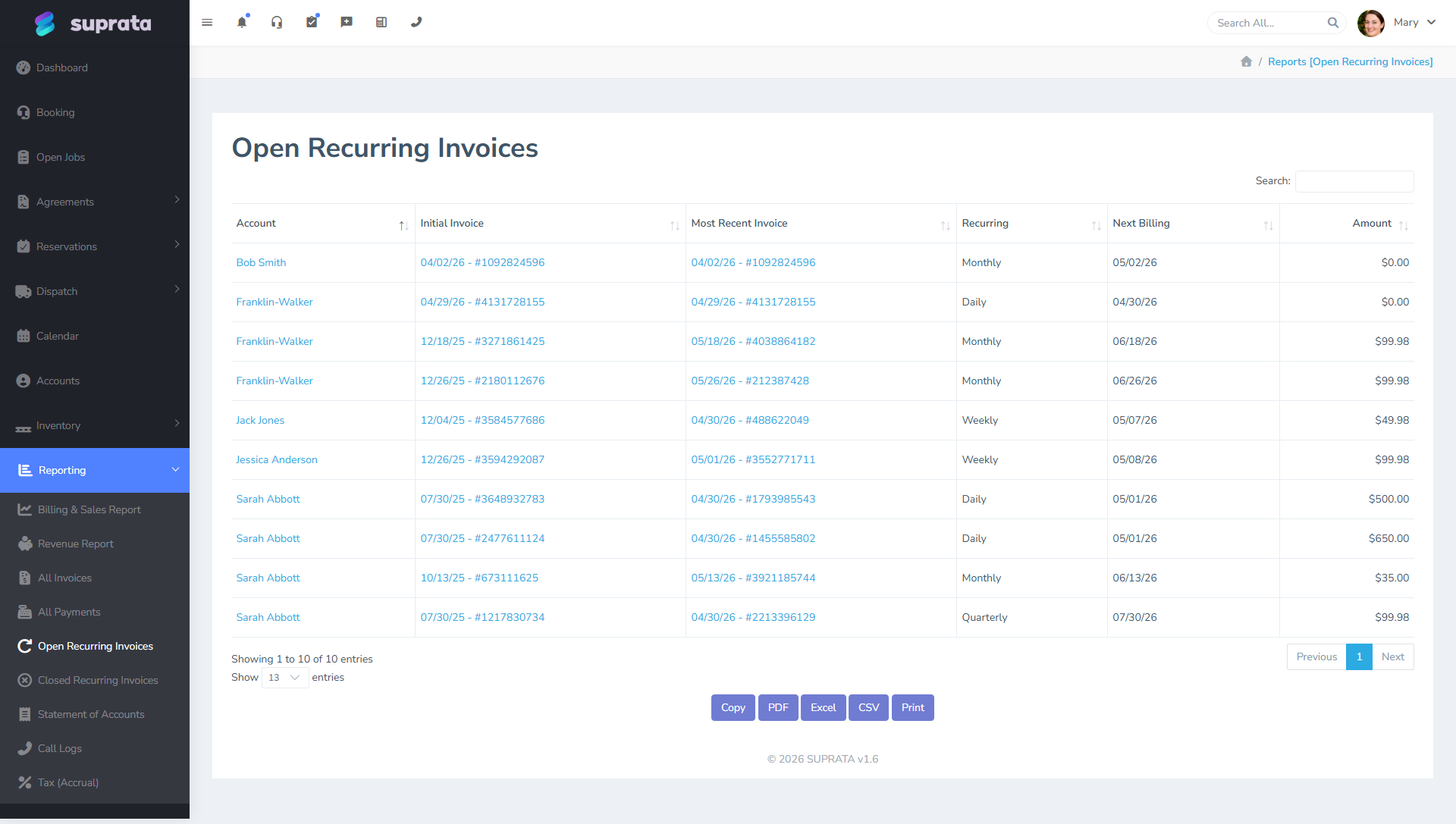
Use this report once a month to verify nothing has gone sideways:
- Are all schedules you expect to be active actually active?
- Are any schedules ending soon that need renewal conversation?
- Does the total MRR match your expectations from the books?
Handling rate changes mid-cycle
When you raise rates on a maintenance plan, the question is what happens to existing schedules. Options:
- Grandfather — leave the old schedules at the old rate; only new schedules get the new rate. Lowest customer friction. Costs you the difference forever.
- Update on renewal — leave existing schedules until their natural end date, then quote the renewal at the new rate. Reasonable middle ground.
- Update now with notice — edit the schedule template to the new rate and notify the customer. Faster revenue, more friction.
There is no built-in way to push a price change to all existing schedules at once safely. You change one schedule at a time. For agreements, the agreement renewal flow is the more natural moment to bump rates.
Pausing and stopping schedules
To temporarily stop billing (customer is taking a hiatus, snowbird going away for the winter):
- Pause the schedule if the system has a pause feature surfaced — the schedule sits dormant and resumes when un-paused.
- End on a future date if you know exactly when service stops.
- Set the end date to today to stop billing immediately while keeping the schedule's history intact.
Don't delete schedules. The history is your audit trail; deleting it loses the connection between past invoices and the schedule they came from.
Common mistakes
- Setting start dates in the past. The system tries to "catch up" — you can end up with five invoices generated at once. If you really want to back-bill, do it manually with one-off invoices.
- Editing schedules and expecting historical invoices to update. They don't. Edits affect future cycles only. To fix an already-generated invoice, fix that invoice directly.
- Auto-sending and auto-paying from day one. Watch a few cycles in draft before turning on full automation. Mistakes you catch on a dry-run are easy to fix; mistakes you catch after thirty customers have already received wrong invoices are not.
- Confusing voiding the child invoice with stopping the schedule. Voiding stops that invoice; the schedule still ticks next cycle. Stop the schedule to stop billing.
- Not naming or describing schedules clearly. Six months in, when you have forty schedules, "Recurring 7" tells you nothing. Use the description to say what it's for: "Smith — quarterly HVAC maintenance".
- Mixing per-customer and per-agreement schedules without thinking. If a customer has a service agreement, bill from the agreement; don't also create a parallel per-customer recurring schedule for the same work — you'll double-bill.
- Forgetting tax category on the schedule template. The first generated invoice will have whatever tax category the line items defaulted to at template time. If the customer is exempt and the schedule was set up before the customer's exempt status was, every generated invoice will charge tax. Double-check on the first generated child.
Related articles
- Estimates vs. invoices
- Sending an invoice to a customer
- Saved payment methods — when to use them
- Customer credits and refunds
- Closing, voiding, and reactivating invoices
- Service agreements overview (forthcoming)