Setting up tax tables in detail
This article picks up where How tax categories work leaves off. That article covered the conceptual model — categories describe the kind of thing taxed, tables describe the rate. This article is the click-by-click on the tables side: how to enter rates, charge a combined state and local rate, use price brackets, and verify the math comes out right.
If you haven't yet decided which categories you need, read Picking the right tax category strategy first. Skipping the strategy step and diving into table entry is one of the most common reasons people end up with tax setups they have to rebuild six months later.
When you'd configure tax tables
- Initial setup. Right after you create your tax categories, before you issue any real invoices.
- Rate change. Your state, county, or city raises (or rarely lowers) a rate. Update the existing row; don't add a duplicate.
- New jurisdiction. You expand into a new state or local taxing authority and need to charge their rate. If the difference is where the work is done rather than what is being sold, use tax locations instead. See Charging tax where the work is done.
- Price-based rates. A jurisdiction charges a different rate on items at or under a certain price. New York City's exemption for clothing under $110 is the classic example.
- Fixing tax that comes out wrong. The two usual causes are rows entered on the assumption that they add up, and a lone
0threshold row that quietly charges nothing. A careful rebuild of the rows is the fix.
The tax tables screen
You'll find the tax tables under the financial settings area of the sidebar. Each row is one rate for one tax category, optionally limited to items at or under a price. A category can have more than one row, but only one row ever applies to a given price. Rows are price brackets, not layers that add up.
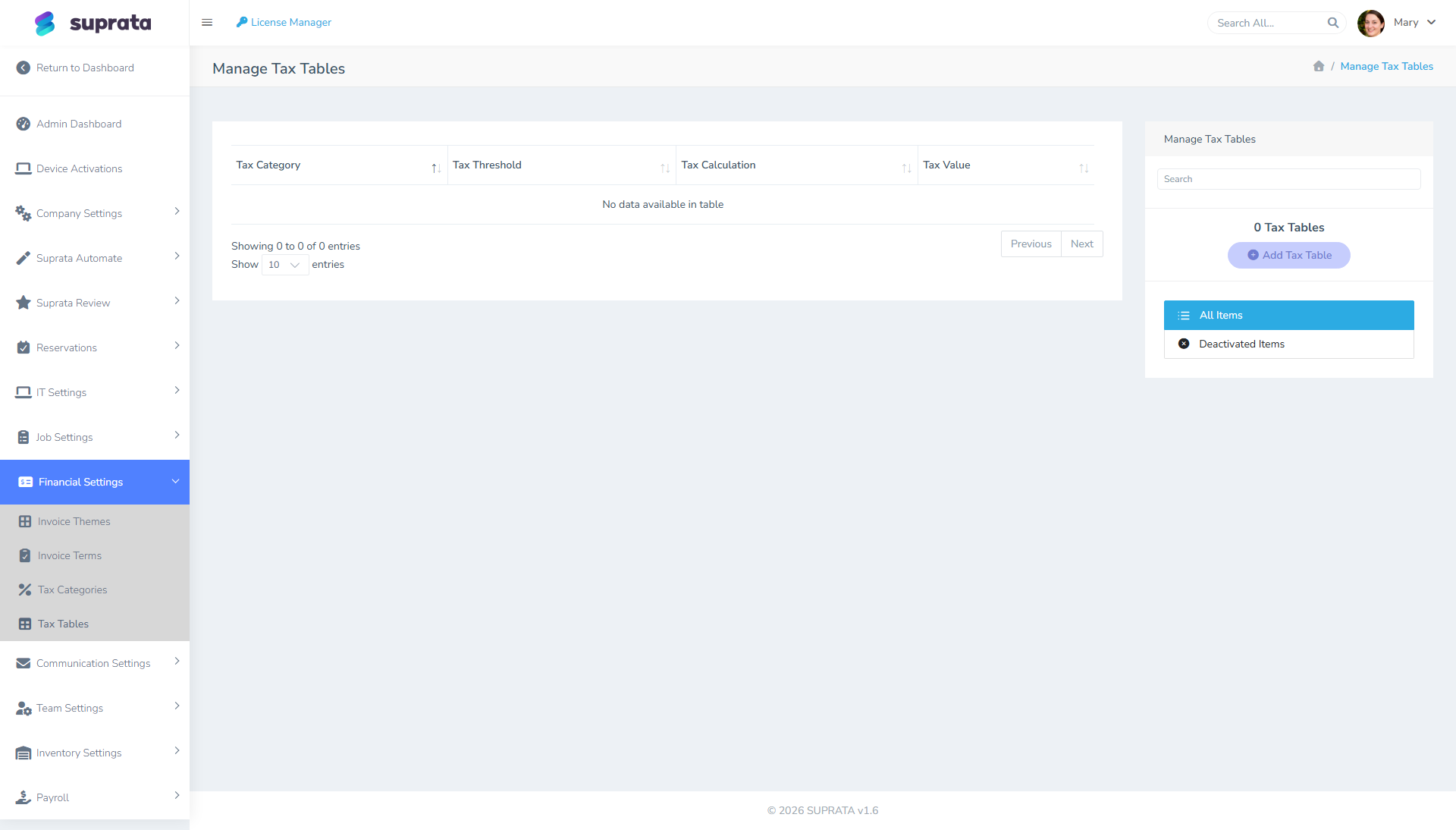
Each row carries four core fields:
- Tax Category — which category this rate applies to. (You set up categories first; without a category to attach to, a tax row has nothing to do.)
- Tax Threshold — which prices this row covers.
-1means any price, and it's the row almost every category needs; the screen's help text says the same. Any other number means "items priced at or under this amount":109.99covers items up to $109.99. - Tax Calculation — Percentage or Flat. Percentage takes a rate (
6.5= 6.5%); Flat takes a dollar amount (5.00= $5 added to every taxable line or invoice). - Tax Value — the actual number, interpreted by the calculation method.
Rows also have a name or description column for your own reference. Use it. "FL State Sales 6%" is much more helpful in six months than the unlabeled rate 6 you'll be staring at when you've forgotten what it was for.
What a threshold actually does
Read this section even if you only charge one rate. Most tax setups that come out wrong go wrong here.
When Suprata taxes an item, it looks at that category's rows and picks exactly one:
- The row with the smallest threshold at or above the price, if there is one.
- Otherwise, the -1 (any price) row.
- If there's neither, the category charges nothing on that item.
The chosen row's rate applies to the whole price, not to the part above or below the threshold. Three things follow:
- A lone
0row taxes nothing but free items. Threshold0means "items priced $0.00 or less". If that's a category's only row, every real sale is charged $0.00 tax. The category looks set up and does nothing. Use-1instead. Some older accounts have a tax like this. The Tax Locations page (under Financial Settings) flags it with a warning, "… is not adding any tax", and an Apply … to every price button that fixes it. Unlocked invoices that include that tax will show tax the next time they're opened. - Rows on one category don't stack. Two rows on the same category never add together; only one bracket applies per price. Two rows with the same category and the same threshold overwrite each other: one wins, and the other is ignored.
- "Portion above $X" taxes can't be built with brackets. A tax on only the part of a price above an amount, such as Tennessee's single article tax, needs a rate that applies to part of the price. A bracket always applies to the whole price. Check with your accountant how to handle those sales.
Which price is compared depends on the Tax Calculation Method on the category. Per Item compares each item's own price. Per Invoice compares the invoice's total for that category.
A typical single-rate setup
The simplest possible setup: one state, one rate, one category.
- Create one category called Taxable Goods (in the Tax Categories screen — see How tax categories work).
- Add one tax-table row:
- Tax Category: Taxable Goods
- Tax Threshold: -1 (any price)
- Tax Calculation: Percentage
- Tax Value: 6.5
- Description: "FL State Sales Tax 6.5%"
Every pricelist item tagged "Taxable Goods" now gets a flat 6.5% tax on the invoice. Items with no category, or with an exempt category that has no rows attached to it, get nothing.
That's the floor of tax setup. From here, every additional row addresses a real-world wrinkle.
Charging a combined state and local rate
When state, county and a special district all tax the same goods, adding several rows to one category won't add the rates together; one row wins. There are two correct ways to do it.
Option 1: one row at the combined rate (recommended). Florida's 6% state rate plus Miami-Dade's 1% surtax is 7%:
| Tax Category | Threshold | Calc | Value | Description |
|---|---|---|---|---|
| Taxable Goods | -1 | Percentage | 7.0 | FL State 6% + Miami-Dade 1% |
A $100 line tagged "Taxable Goods" picks up $7.00 tax. There's one tax line on the invoice and one number on the tax report. Put the breakdown in the description so that when one part changes, you know what the 7 is made of.
Option 2: one category per taxing authority. Choose this if your return asks for the state and local amounts separately. Create a category for each authority, give each one a -1 row, and give every taxable item both categories:
| Tax Category | Threshold | Calc | Value | Description |
|---|---|---|---|---|
| FL State Sales | -1 | Percentage | 6.0 | FL State Sales |
| Miami-Dade Surtax | -1 | Percentage | 1.0 | Miami-Dade Discretionary |
An item can carry more than one tax category, and each category is charged separately, so these do add up. The $100 line shows $6.00 and $1.00 as two tax lines, $7.00 in total, and the tax report shows each on its own. The cost is tagging: every taxable item needs every category, and a new item missing one is quietly under-taxed. The Bulk Apply Tax Category tool on the Tax Categories screen helps.
Most businesses should use Option 1. And if the combined rate depends on where the work is done (one county's rate for jobs there, another's elsewhere), don't build categories per county. Use tax locations.
Using thresholds for price brackets
The right use of a threshold is when a different single rate applies to items at or under a price. New York City exempts clothing and footwear priced under $110 per item, and taxes items at $110 or more at the full combined 8.875%:
| Tax Category | Threshold | Calc | Value | Description |
|---|---|---|---|---|
| Clothing & Footwear | 109.99 | Percentage | 0 | NYC: under $110 exempt |
| Clothing & Footwear | -1 | Percentage | 8.875 | NYC full rate |
A $60 shirt is at or under $109.99, so the first row applies: $0.00 tax. A $150 coat is above every threshold, so the -1 row applies to the whole price: 8.875% of $150 = $13.31.
Two rules for brackets:
- Set the category to Per Item. The rule is per article. On Per Invoice, the threshold is compared with the invoice's total of clothing, so three $60 shirts ($180) would be taxed at the full rate.
- Always include the -1 row. Without it, an item priced above your highest threshold matches no row and is charged nothing.
Exemptions and thresholds like this change. Check the current rule with the state before you rely on it.
Flat-dollar taxes
Some taxes are a flat fee, not a percentage. Most commonly: bottle deposits, environmental fees, recycling fees that look like taxes on the invoice.
Use Flat as the Tax Calculation. The Tax Value is then a dollar amount, not a percent.
| Tax Category | Threshold | Calc | Value | Description |
|---|---|---|---|---|
| Bottled Water | -1 | Flat | 0.10 | CA CRV per container |
Combined with quantity-aware items, this becomes "10 cents per bottle on the bottled-water category". Fees like this often warrant their own tax category (so they only apply to the items that owe them) rather than being mixed in with general goods. As with any rate, use -1 for the threshold; a 0 here would charge the fee on nothing.
Rounding methods
The category — not the tax row — controls how fractions of a cent get rounded. There are three options:
- Round Up — any fraction goes up to the next cent: $0.4312 becomes $0.44. It's slightly conservative for the tax-collecting business, because you never under-collect.
- Round Nearest — half a cent or more rounds up, less rounds down: $0.4312 becomes $0.43, and $0.435 becomes $0.44. This is ordinary rounding and what most states expect. Check yours.
- Round Down — the fraction is dropped. It's rare in tax settings and usually wrong for state remittance, because it under-collects over many invoices.
Where the rounding happens depends on the category's calculation method:
- Per Item — the tax is rounded per unit, then multiplied by the quantity.
- Per Invoice — the tax is rounded once, on the total of that category's items on the invoice.
Take three $0.99 items at 6.25%, with Round Nearest. Per Item: $0.061875 per unit rounds to $0.06, × 3 = $0.18. Per Invoice: 6.25% of $2.97 is $0.185625, which rounds to $0.19. On invoices with many low-priced items, that penny difference adds up.
Pick one rounding method and apply it consistently across categories. Mixed rounding causes audit pain — your trial-balance sales-tax-collected won't match the per-line breakdown.
How rate changes reach existing invoices
When you change a tax rate, what happens to invoices already in the system depends on their state:
- Unlocked invoices recalculate their tax with the current rates the next time they're opened or changed. A May invoice that's still unlocked will show July's new rate once someone opens it.
- Locked invoices keep the tax they were locked with, and their total stays consistent with it. (Before a recent update, a rate change could still shift a locked invoice's total. It no longer does.)
- Closed and voided invoices never change.
That's why a May invoice billed at 6% keeps showing 6% after a July increase to 6.5%, if it was locked or closed. That's what the customer was billed and what you collected. If it was left unlocked, it moves the next time anyone touches it.
The practical implications:
- Lock before you change a rate. Any invoice whose tax must not move should be locked or closed first: one that's been sent, been paid, or is part of a return you've filed. Lock is in the Invoice Actions menu.
- Schedule rate changes for the moment they take effect, not before. If you raise the rate a week early to "get it ready", every unlocked invoice opened that week picks up the new rate before the law required it.
- If a locked invoice genuinely needs the new rate, void it and issue a new one.
Verifying your setup
Before you let any real invoice flow, run one synthetic invoice through:
- Create a test invoice with one line per category you've set up: a "Taxable Goods" line at $100 and an "Exempt" line at $100. If you use brackets, add one line priced exactly at a threshold and one just above it.
- Save the invoice.
- Look at the tax breakdown. Does each line show the rate you expect?
- If you use one category per authority, does each show as its own tax line, adding up to the combined rate? (e.g., $6.00 + $1.00 = $7.00 on a $100 line.)
- Does the line priced exactly at the threshold get the bracket's rate, and the one just above it get the any-price rate?
- Does any taxable category come out at $0.00? That's almost always a missing -1 row, or a
0where a-1should be.
If anything looks wrong, fix the table rows and re-save the test invoice — it'll recalculate. Repeat until the math is clean. Then void the test invoice so it doesn't pollute your reports.
Common mistakes
- Using
0as the threshold for "applies to everything". Threshold0covers only items priced $0.00 or less, so the tax never charges anything on a real sale. Use-1for any price. - Expecting several rows on one category to add up. State 6% and county 1% as two rows on "Taxable Goods" does not charge 7%; one row wins. Enter the combined rate as one row, or use a category per authority.
- Leaving out the -1 row in a bracket setup. Items priced above your highest threshold match nothing and are charged no tax.
- Building a separate category per jurisdiction. "Taxable Goods FL", "Taxable Goods GA", "Taxable Goods TN" sounds tidy but breaks down quickly. Every pricelist item now needs its category set per state, which is impossible at the item level. Categories describe the type of thing. For rates that depend on where the work is done, use tax locations.
- Adding a new row when rates change instead of editing the existing one. Rows don't add up, so you won't double-tax. But if the old and new rows share a threshold, one silently overrides the other, and you can't tell from the list which rate is actually being charged. Always edit the existing row in place.
- Mixing Percentage and Flat on the same category without thinking. A Percentage row of
5.0adds 5%; a Flat row of5.00adds $5. They look similar in the input and produce wildly different invoices. Read the calculation method twice when entering the row. - Naming rows by their rate value. "6% Tax" becomes meaningless when the rate changes. Name by jurisdiction: "FL State + Miami-Dade", "NYC Clothing Under $110".
- Forgetting to update both the rate and the description. When the state goes to 6.5%, change both the value field and the description text. Half-updated rows create confusion at audit.